Ads, upsells and shopping — gone
ReVanced does not filter traffic and does not need a VPN. The patches strip the ad and commerce surfaces out of the client itself, so the slots are never laid out and never drawn.
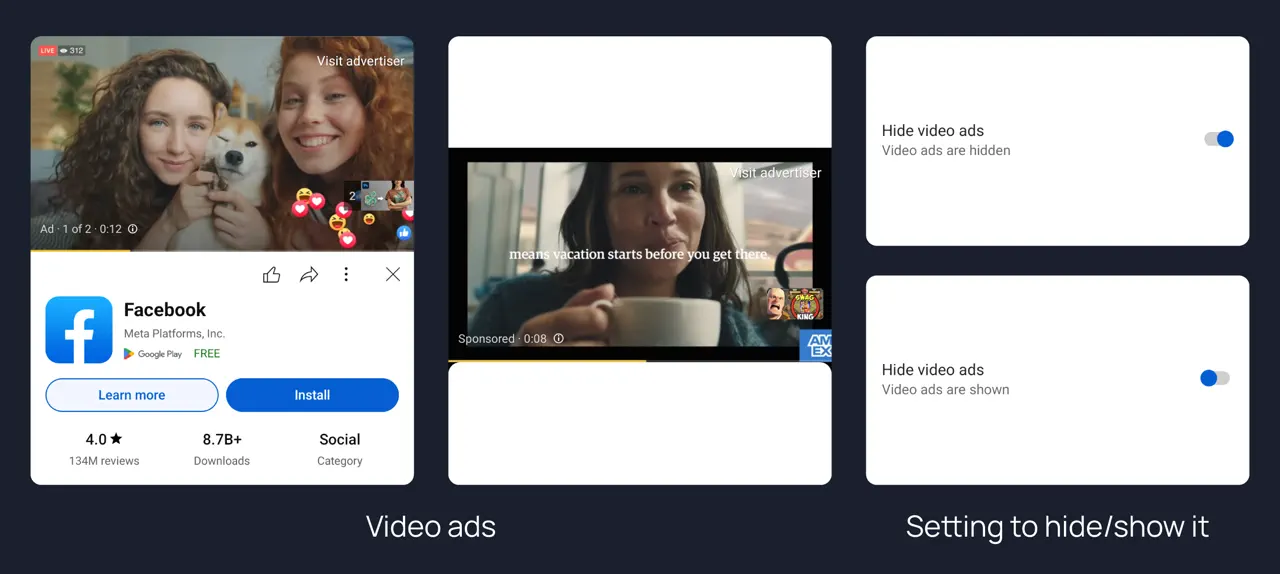
In-stream video ads
Pre-roll, mid-roll and post-roll breaks never play — the player moves straight to the content, including on videos with the double ad load YouTube uses on long uploads.
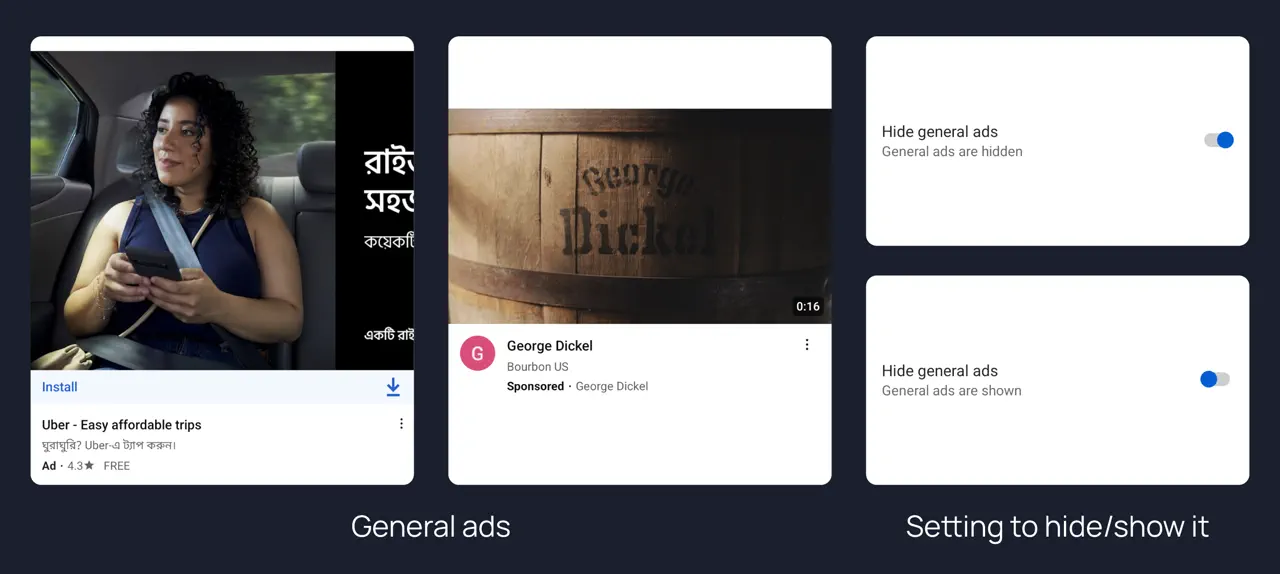
Feed and banner ads
The sponsored video cards and app-install banners that sit between real results in the home feed, search and watch page.
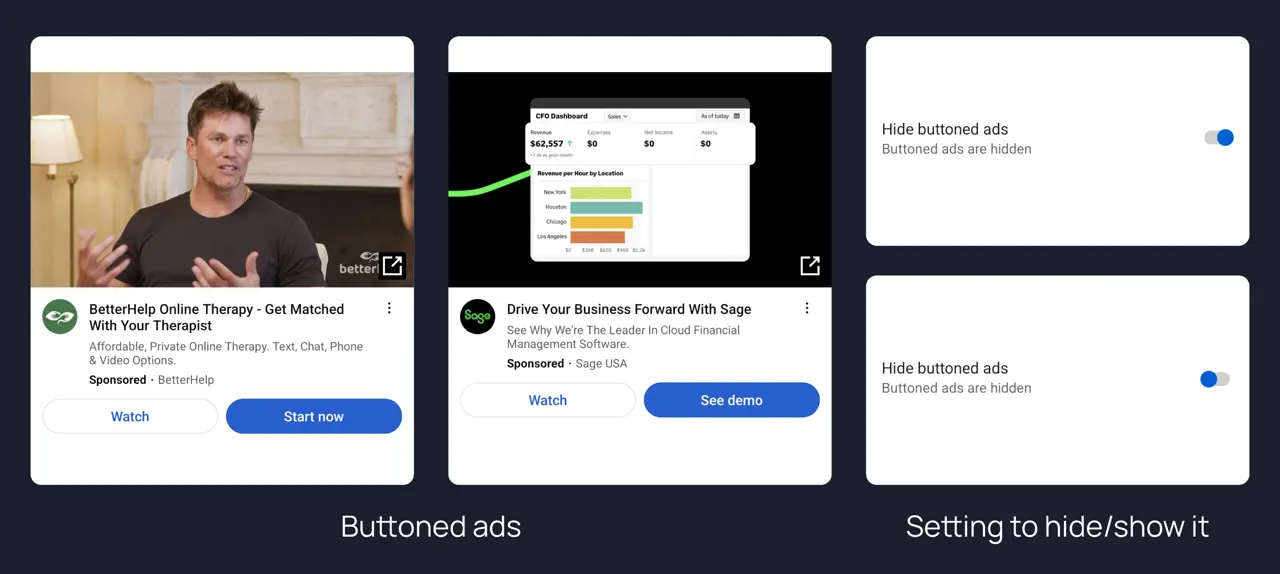
Buttoned sponsored cards
The larger "Sponsored" units that come with Watch / Install / See demo call-to-action buttons attached.
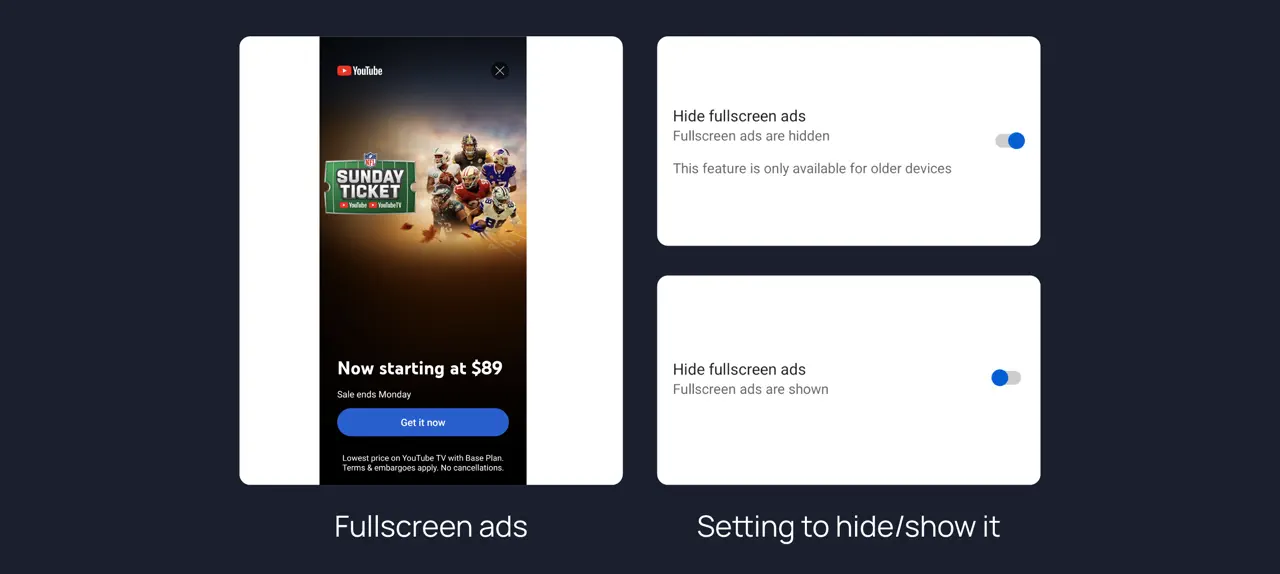
Fullscreen takeovers
The interstitial that covers the whole screen on app open. This one applies to older client versions, where those takeovers still appear.
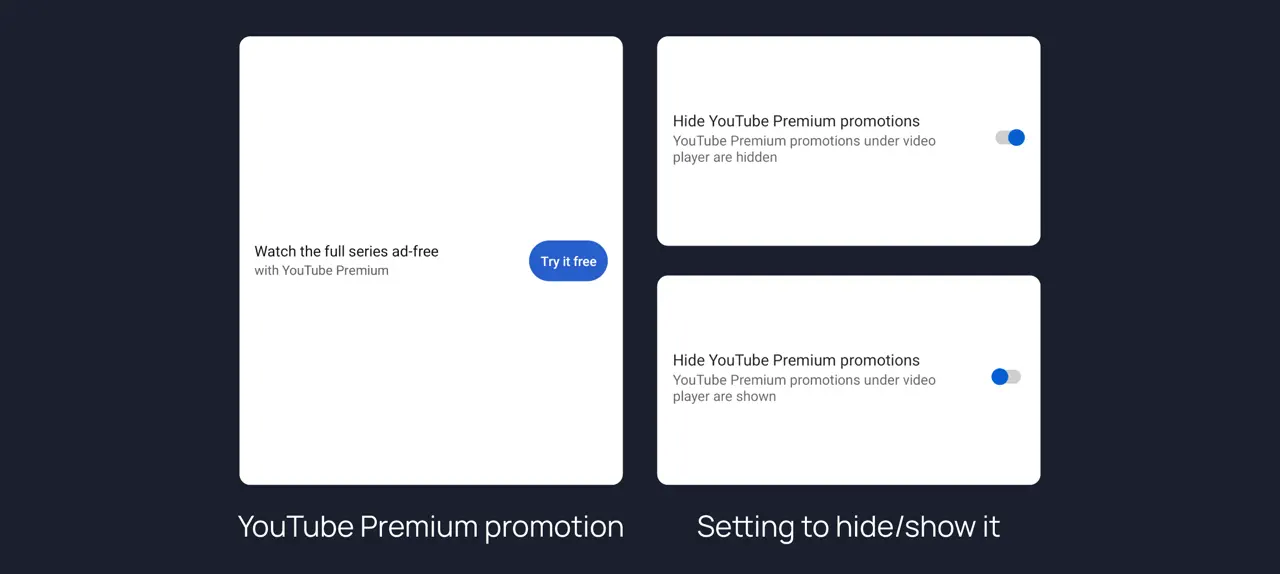
Premium upsells
"Watch the full series ad-free — try it free" and the rest of the Premium promotion strip under the player.
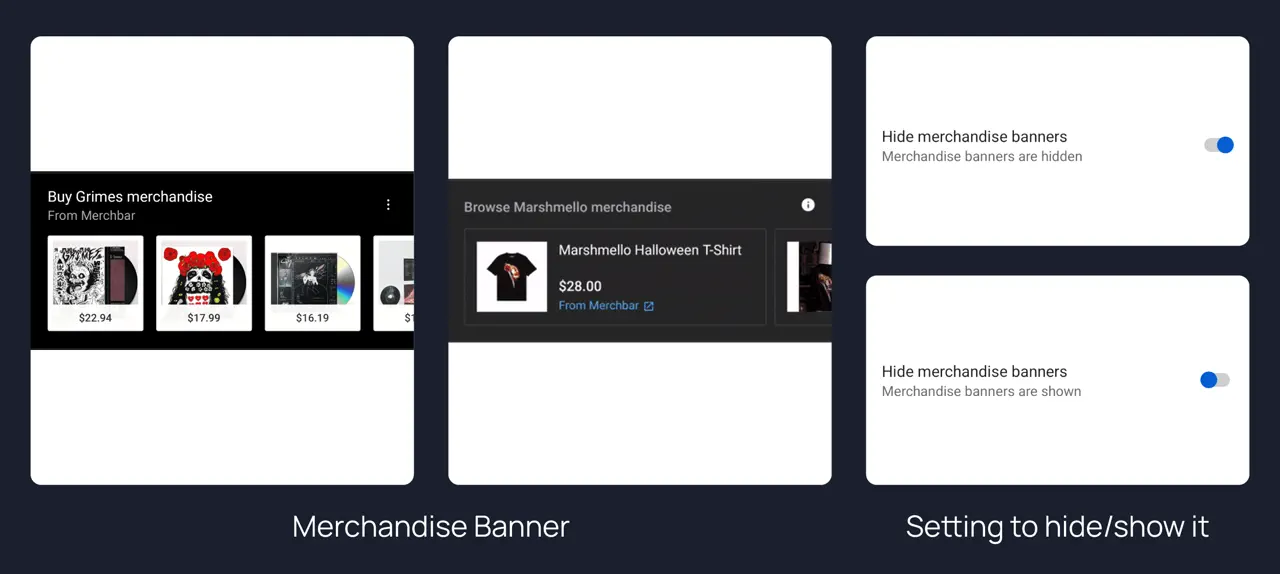
Merchandise shelves
The Merchbar strip of hoodies and vinyl that channels attach below the player.
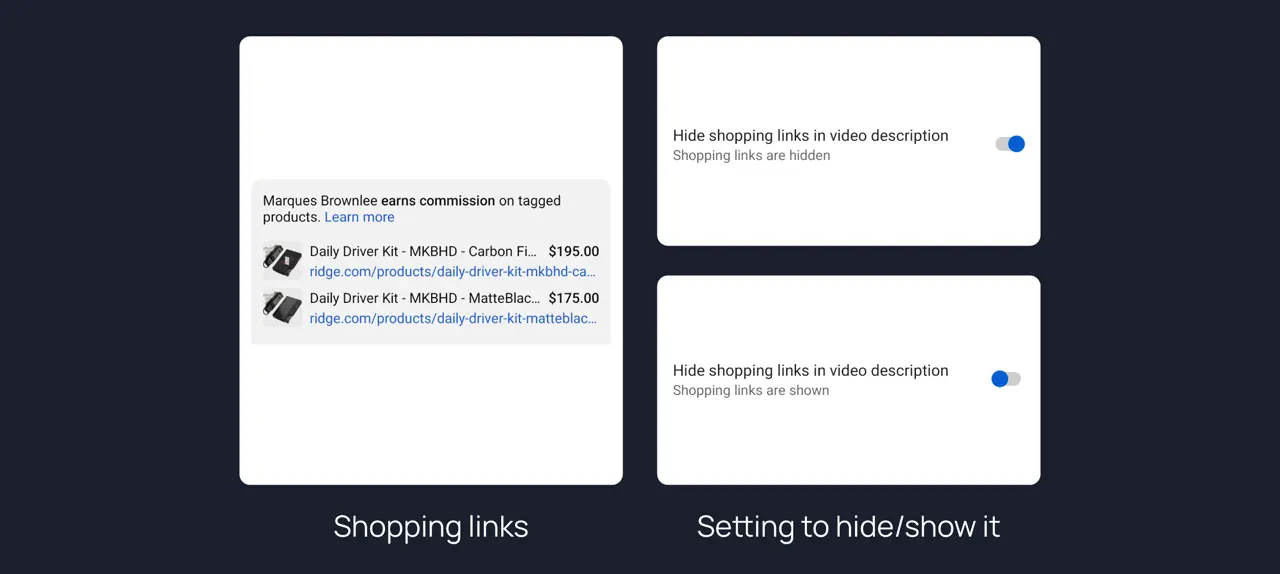
Affiliate shopping links
The tagged-product list and "earns commission on tagged products" block inside video descriptions.
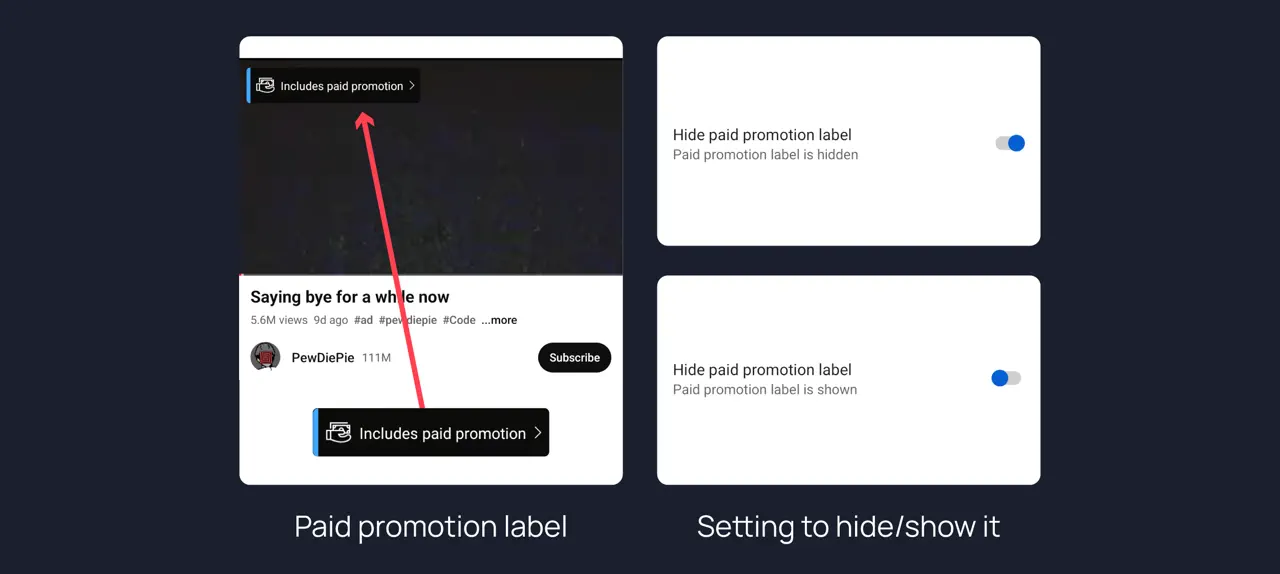
Paid promotion label
Optional, and off by default for a reason: this hides the disclosure badge, not the sponsorship itself. Leave it on if you want to know.
Crowd-sourced data: SponsorBlock, RYD and DeArrow
Three community databases fill in what YouTube took away or never offered. All are opt-in, and all get better the more people submit to them.
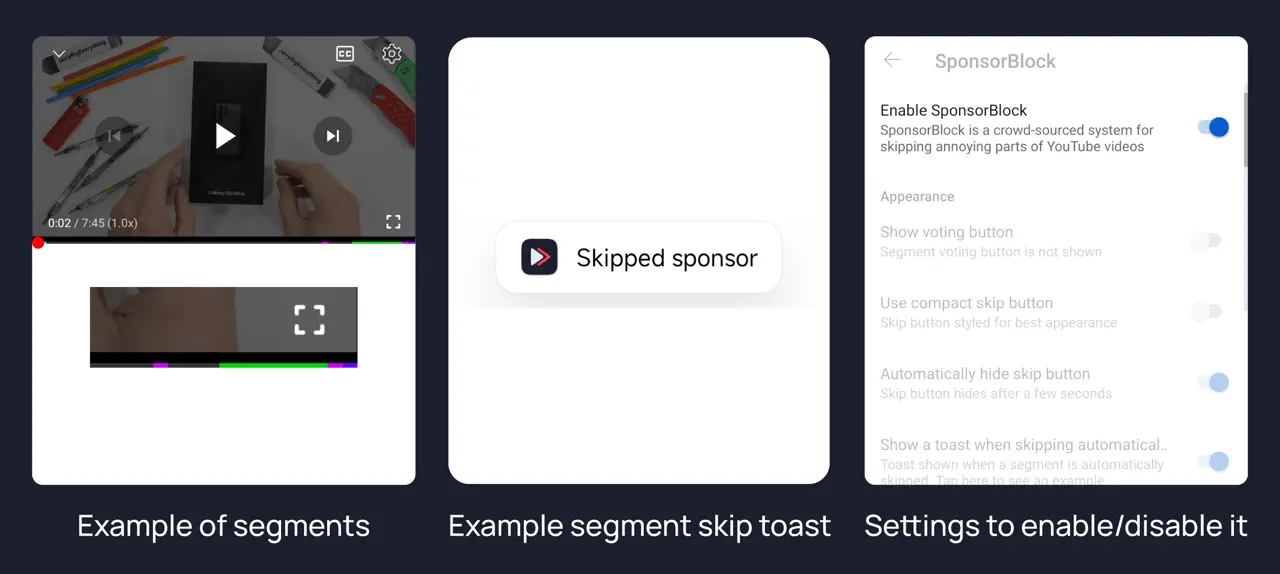
SponsorBlock skips the sponsor read
Viewers mark the sponsor, intro, outro, self-promo, interaction reminder and off-topic music segments of a video; your player skips them automatically and shows a small toast when it does. The segments appear as coloured bands on the seekbar, and you can vote on them or submit your own.
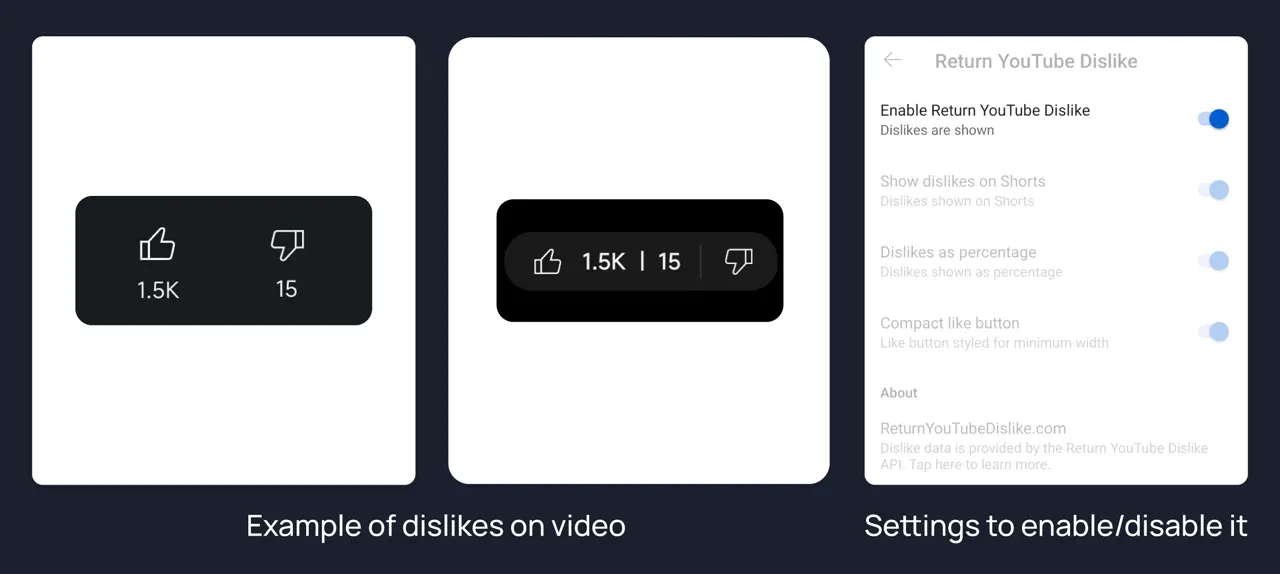
Return YouTube Dislike
Brings the dislike count back next to the like button, including on Shorts, as a raw number or a percentage. The figures come from the Return YouTube Dislike API and are estimates built from its own users, not official YouTube data.
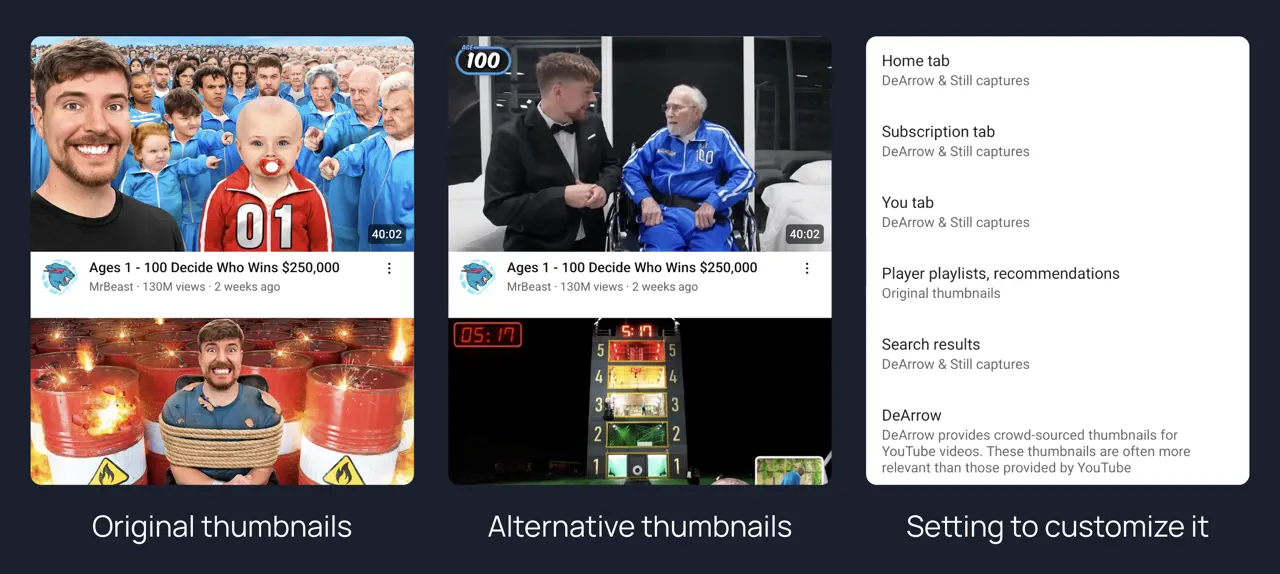
DeArrow and still captures
Swap clickbait thumbnails for community-submitted ones from DeArrow, or for a plain frame grabbed from the video itself. Configurable per surface, so you can de-clickbait search results while leaving playlists alone.
Playback that no longer needs Premium
The playback restrictions YouTube reserves for subscribers are lifted, and the quality and speed settings become things you set once instead of every video.
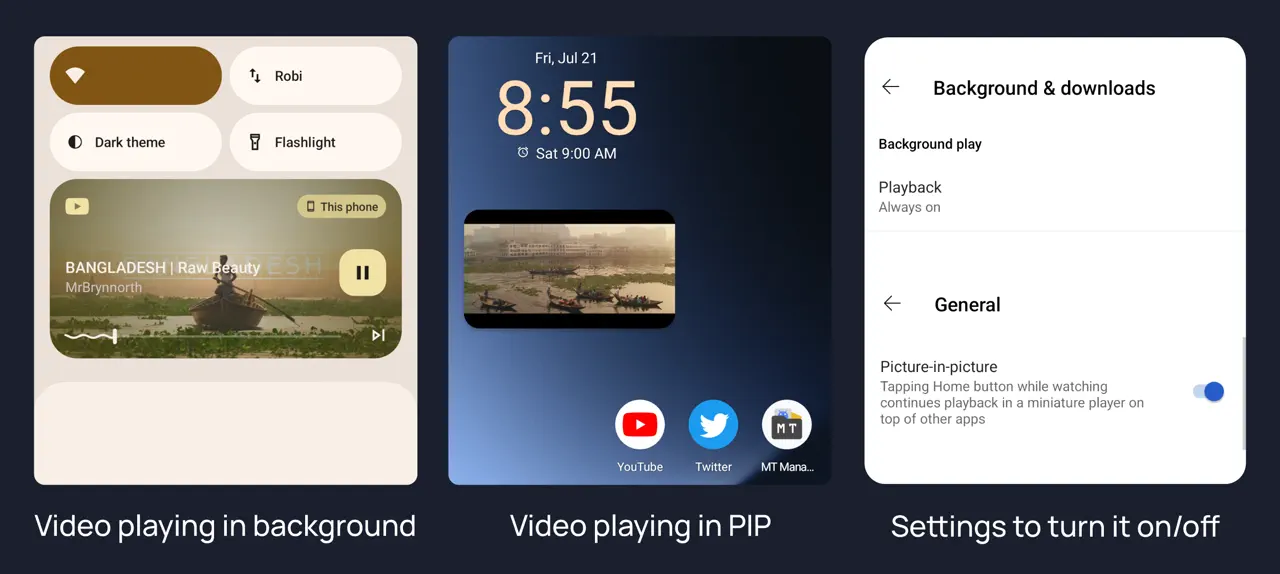
Background play and picture-in-picture
Audio keeps running with the screen off or in another app, with normal notification controls, and tapping Home drops the video into a floating window instead of stopping it. This alone is what most people install ReVanced for.
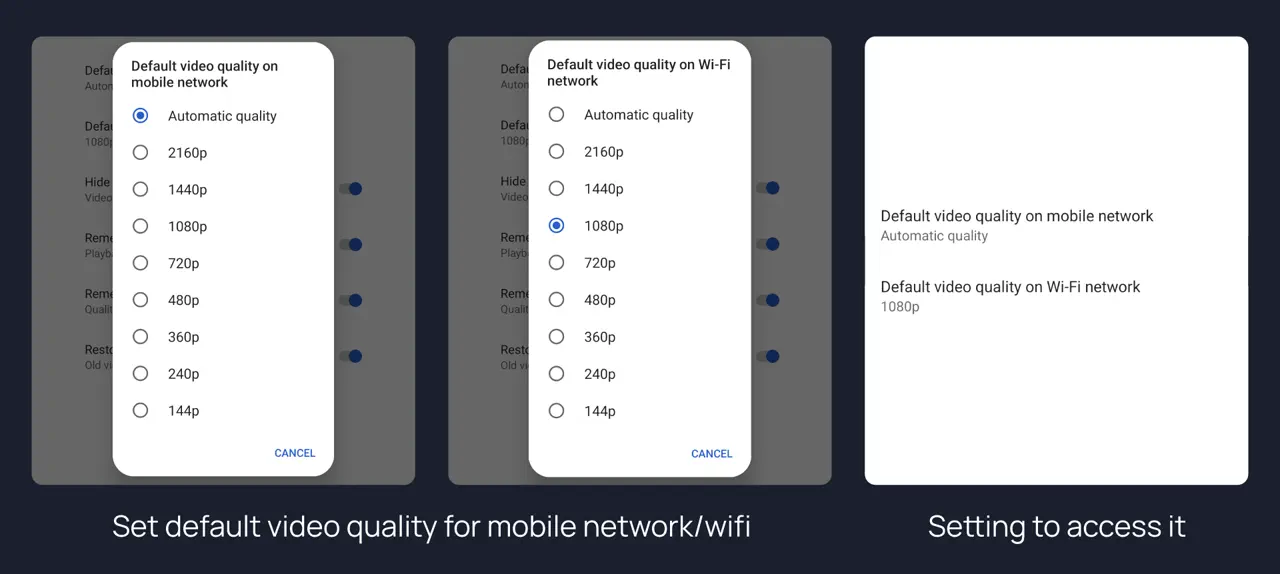
Separate quality for Wi-Fi and mobile
Pin 1080p at home and 480p on data — two independent defaults, so you stop paying for resolution you did not ask for.
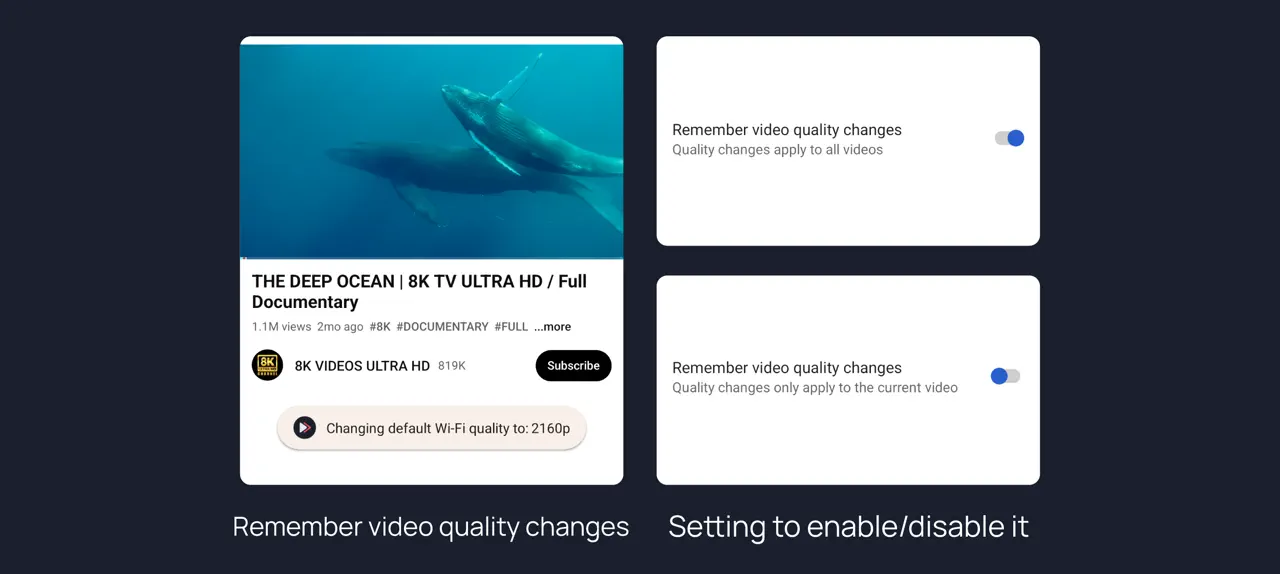
Quality changes that stick
A quality you pick mid-video becomes the new default for everything, instead of being forgotten the moment the video ends.
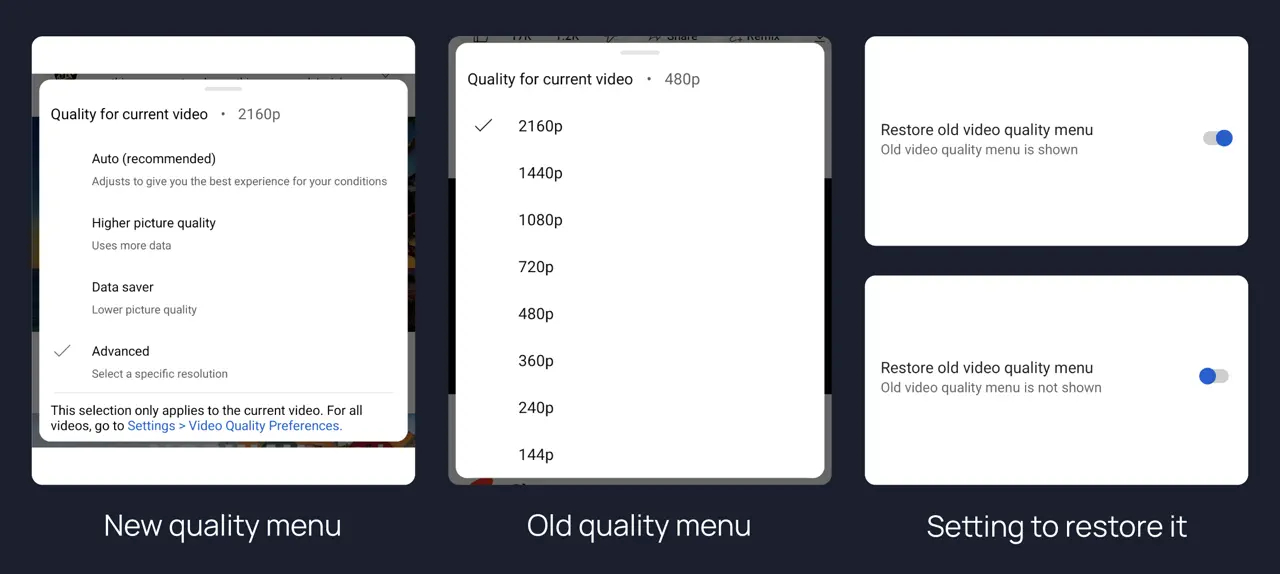
The old quality menu
Skips the "Auto / Higher picture quality / Data saver" wrapper and goes straight back to the plain 2160p…144p list.
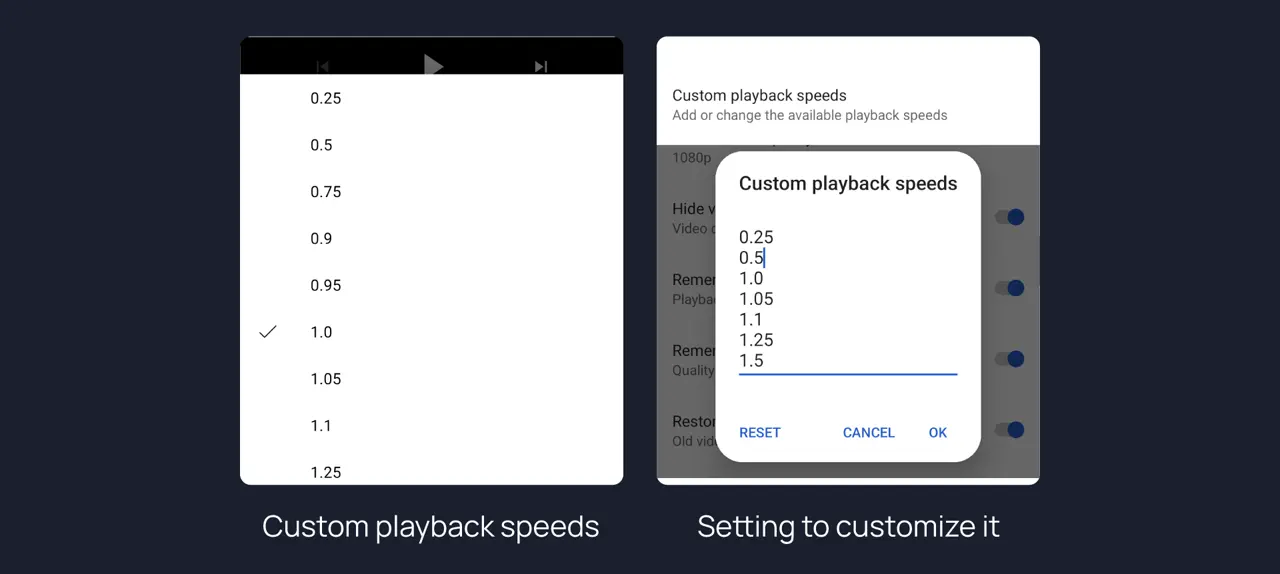
Your own playback speeds
Define the increments yourself — 0.9x, 1.05x, 1.15x — instead of the coarse steps YouTube ships, and have the choice persist across videos.
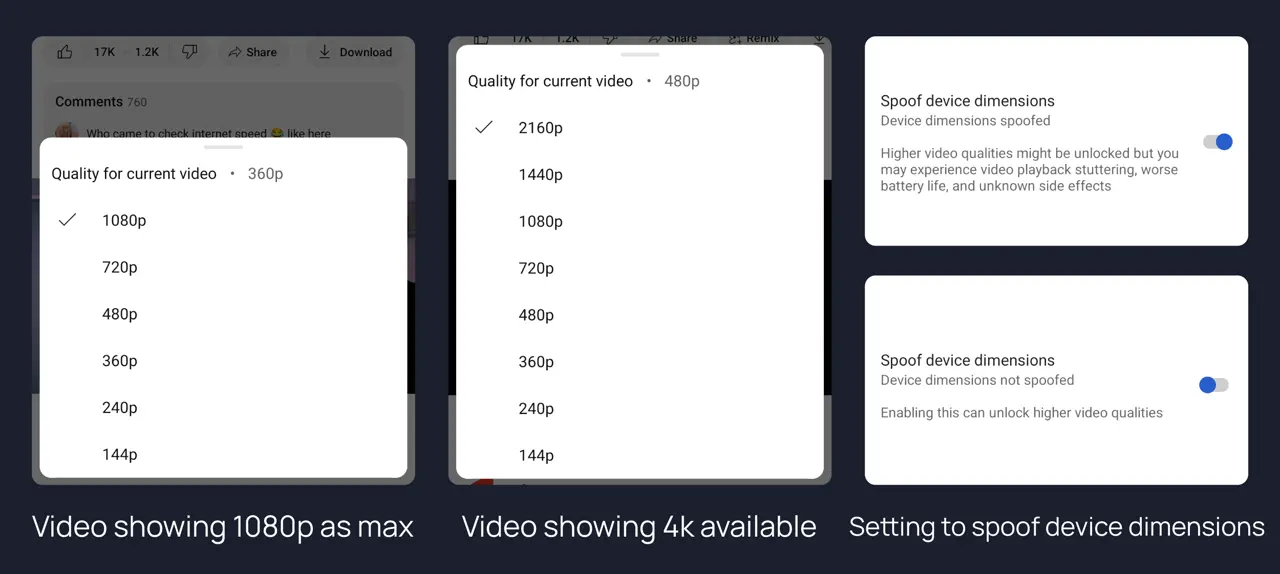
Unlock higher resolutions
Reports larger screen dimensions so YouTube offers 1440p and 2160p on hardware where it caps you at 1080p. The trade-off is real: expect more stutter and more battery use.
The player, under your thumb
Gestures and controls that other Android players have had for a decade, plus the ability to delete the parts of the player you never press.
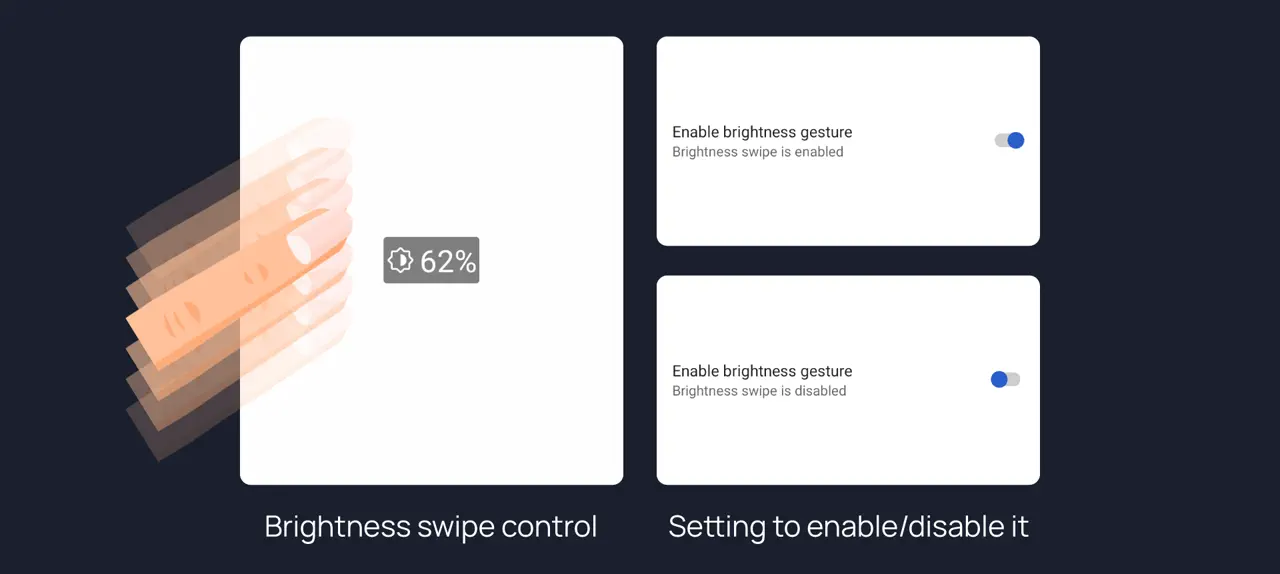
Swipe for brightness and volume
Drag on the left half of the player for brightness, the right half for volume, with an on-screen readout. Swipe brightness all the way down and it hands back to the system auto-brightness.
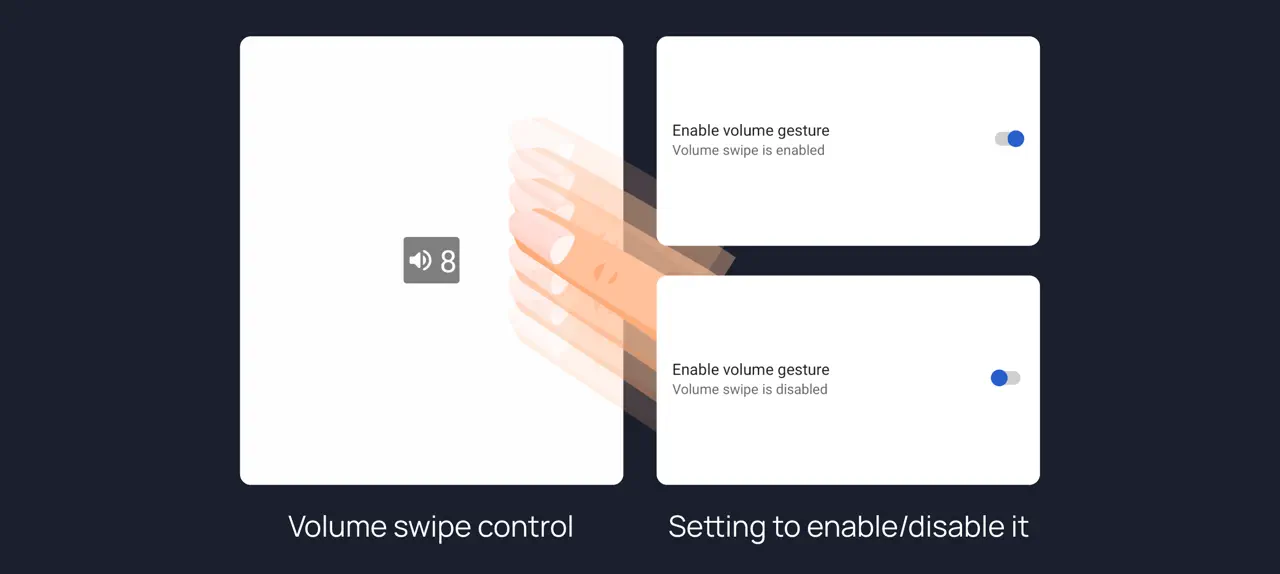
Volume swipe
The same gesture on the right half of the player, so you never reach for the hardware keys mid-video.
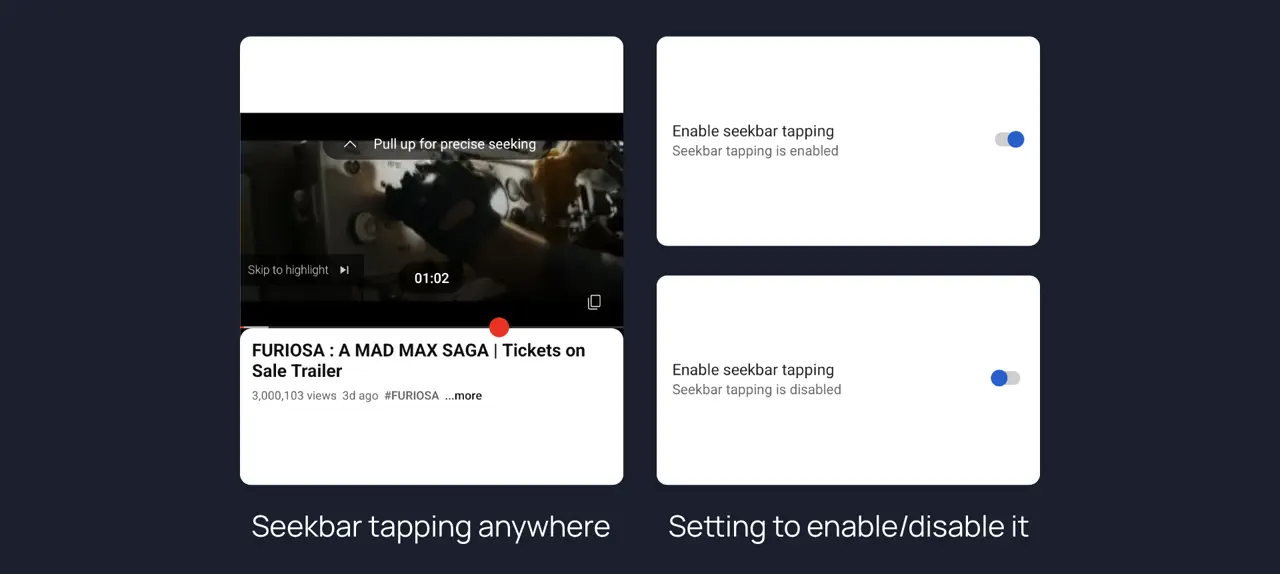
Tap anywhere on the seekbar
One tap jumps to that position instead of requiring you to grab the handle first.
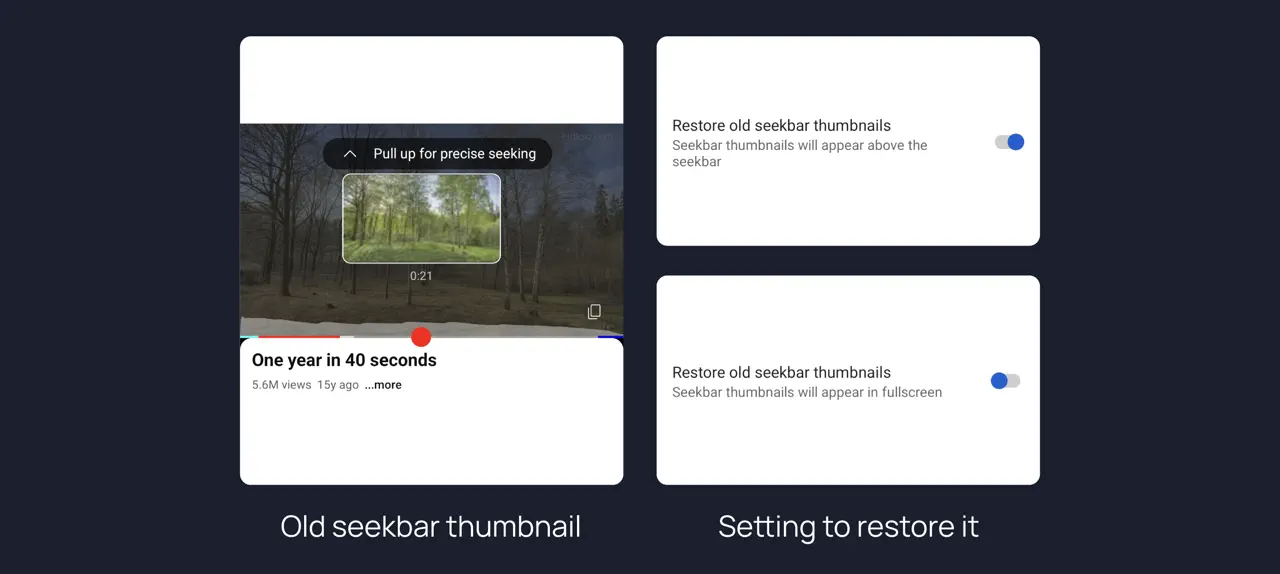
Seekbar thumbnails above the bar
Puts the scrubbing preview back where it was readable, instead of the fullscreen-only treatment.
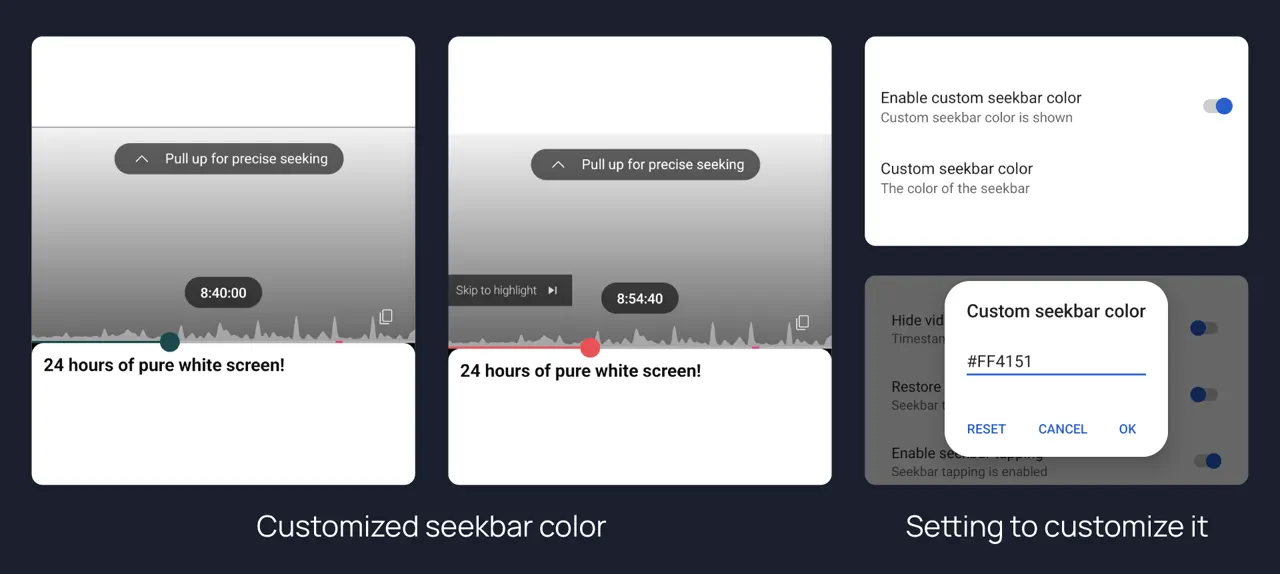
Custom seekbar colour
Any hex value you like in place of YouTube red — it also recolours the Shorts progress bar.
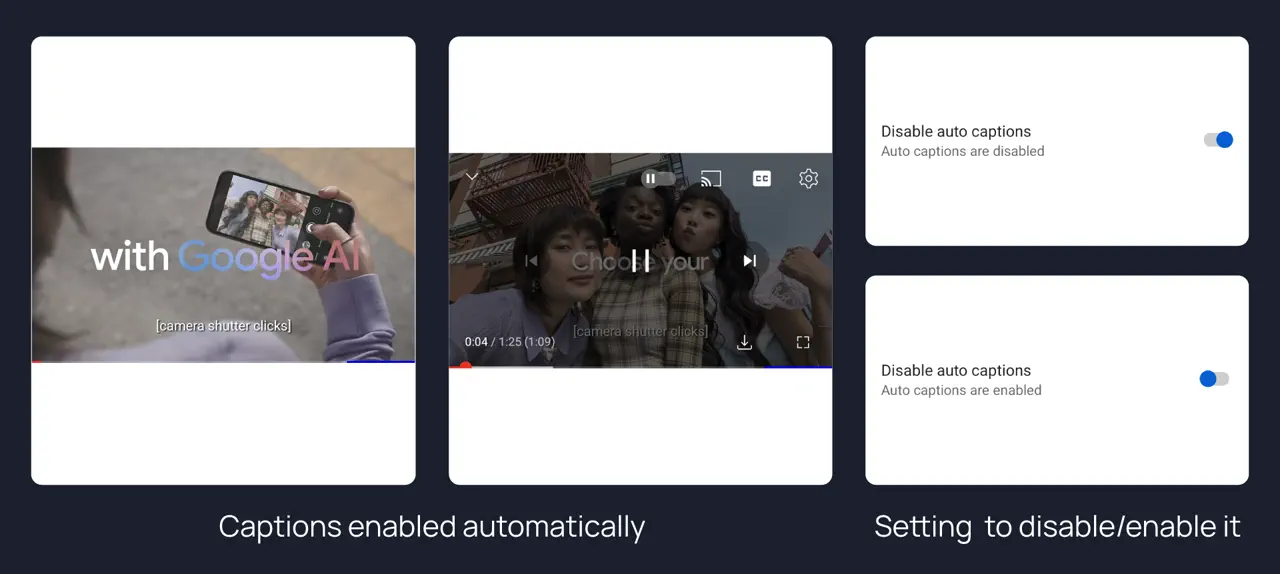
Stop captions turning themselves on
Kills the auto-captions that switch on by themselves on some videos and cover the frame.
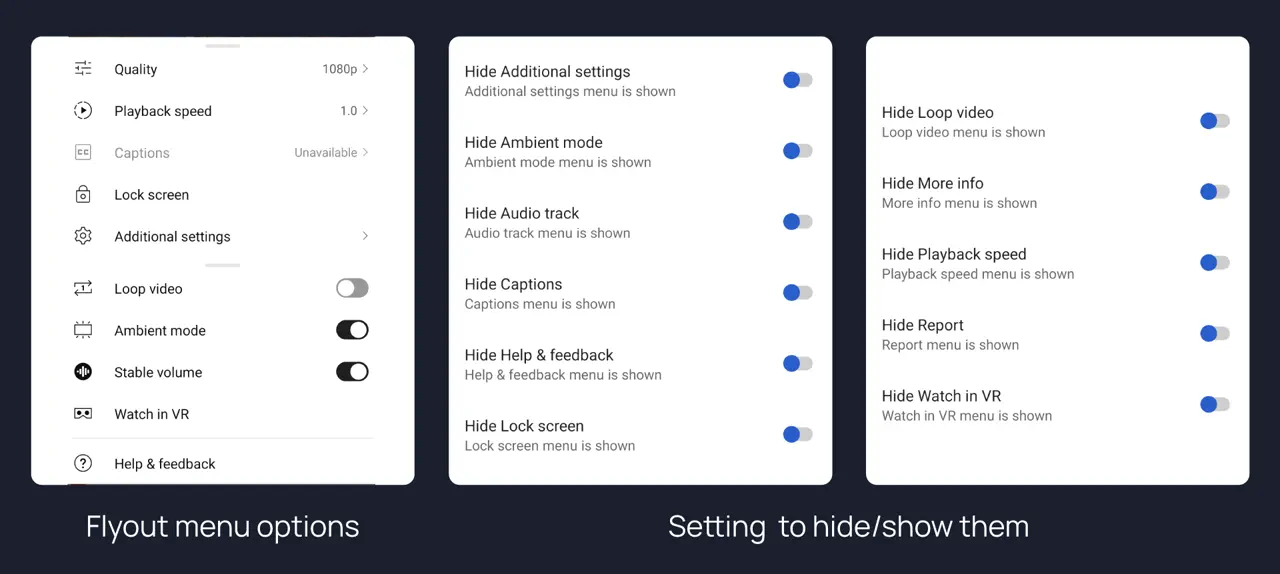
Trim the player menu
Hide the rows you never open — Watch in VR, Help & feedback, Ambient mode, Lock screen — so quality and speed sit at the top.
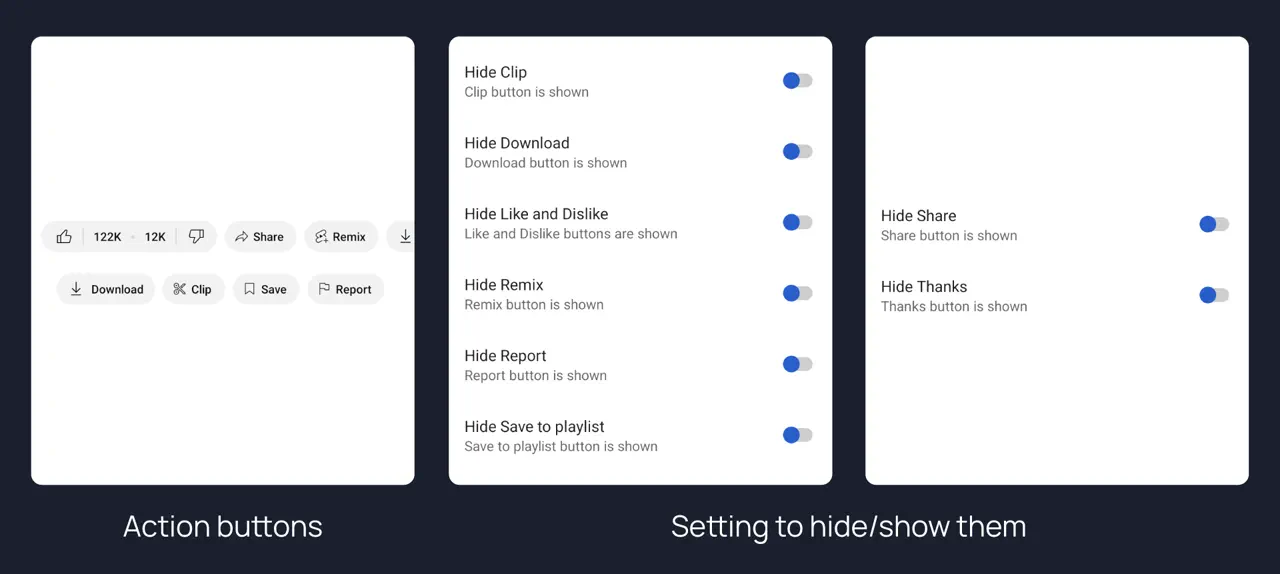
Choose your action buttons
Individually hide Like, Dislike, Share, Remix, Clip, Thanks, Download or Save from the row under the video.
A feed you actually chose
Recommendation surfaces are removed at the component level rather than collapsed, so the rows you switch off do not come back after an app update reshuffles the home tab.
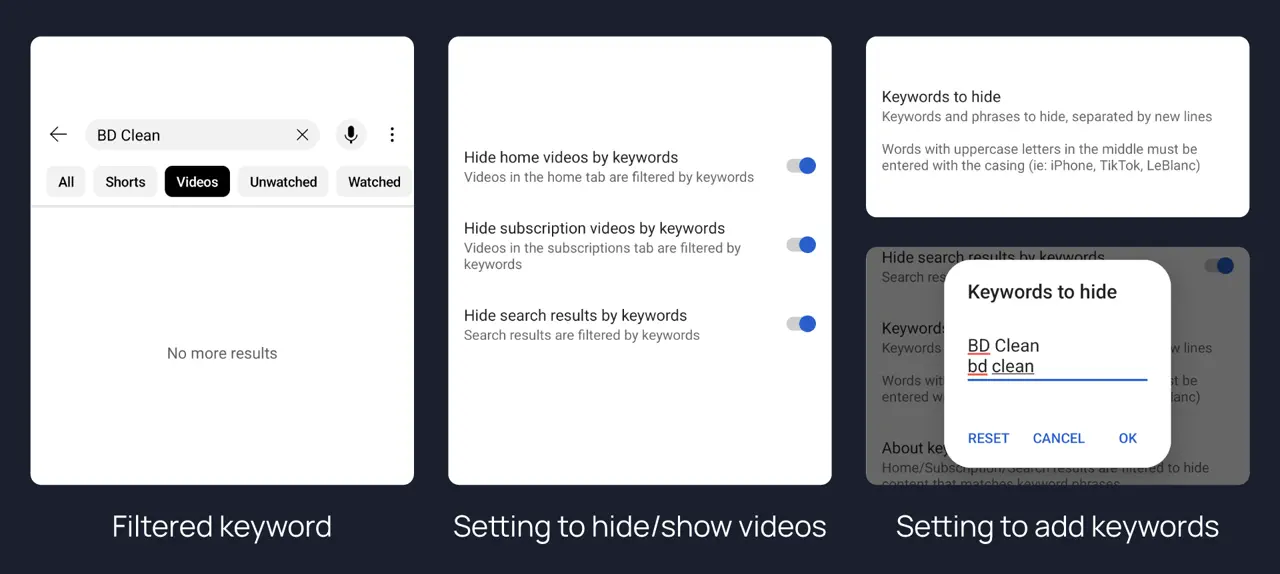
Filter by keyword
Give it a list of words or phrases and any video whose title matches disappears from home, subscriptions and search. The blunt instrument for a topic you are tired of, a spoiler you are avoiding, or a channel that keeps finding its way back.
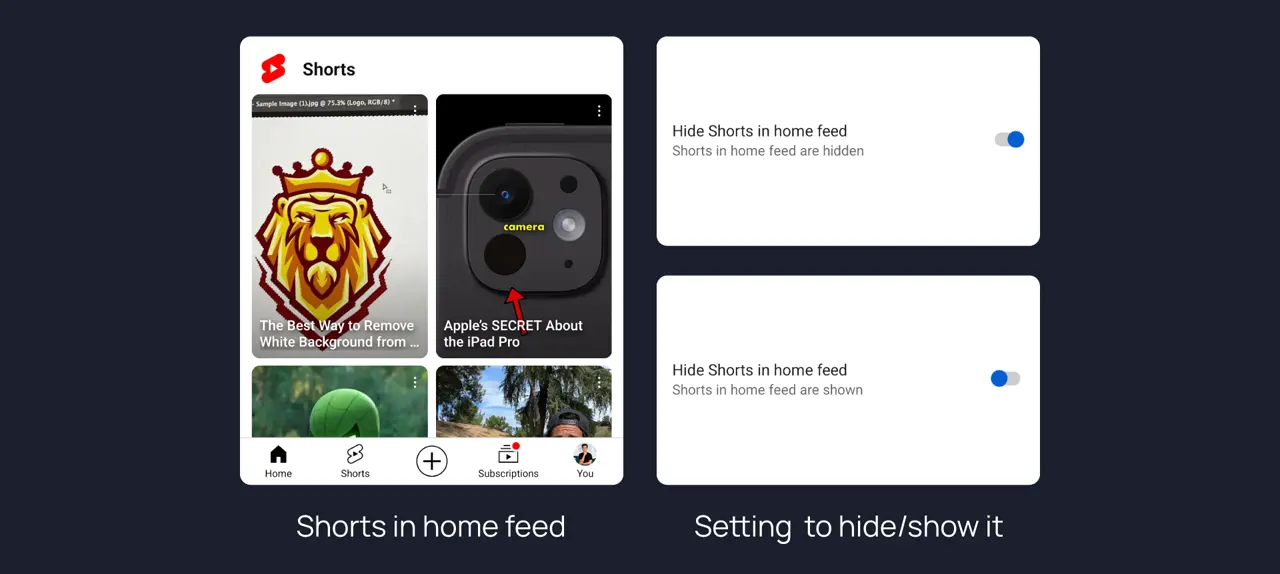
No Shorts in the home feed
The Shorts shelf is removed from home outright — not collapsed, not "show fewer".
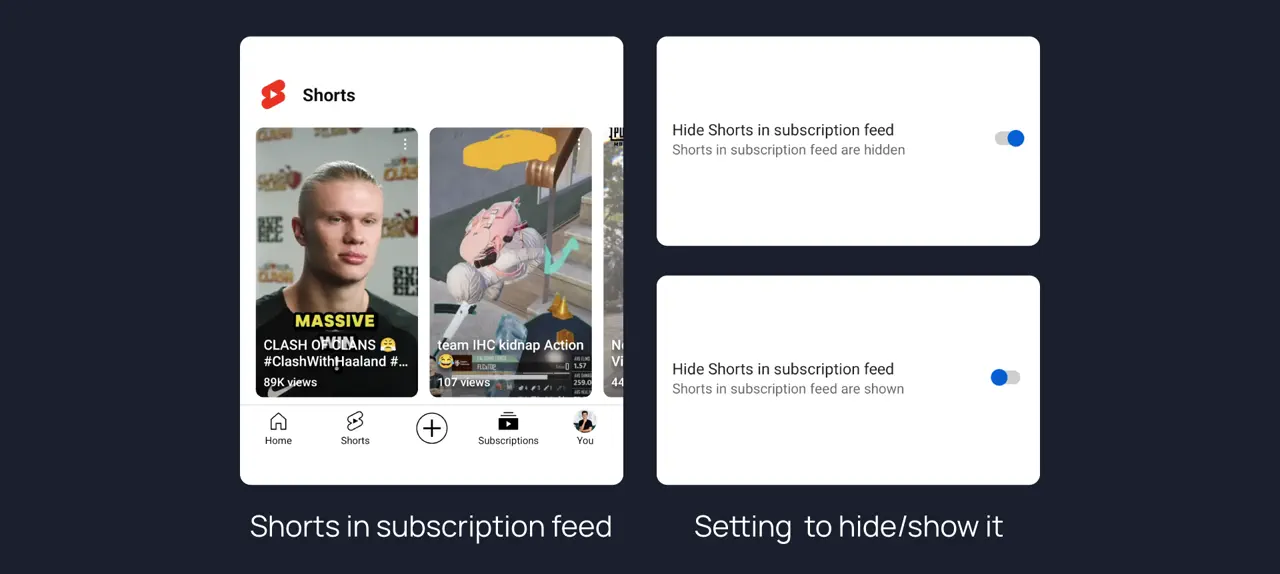
No Shorts in subscriptions
Same for the subscriptions tab, so it goes back to being a list of the videos your channels actually uploaded.
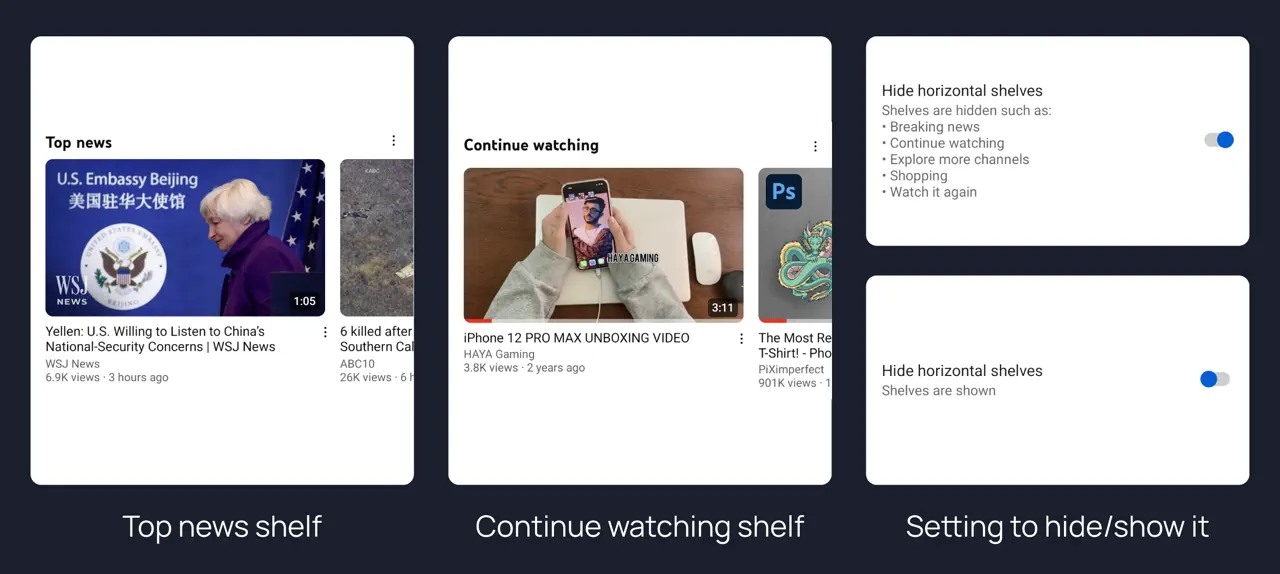
Horizontal shelves
Breaking news, Continue watching, Explore more channels, Shopping and Watch it again — each removable.
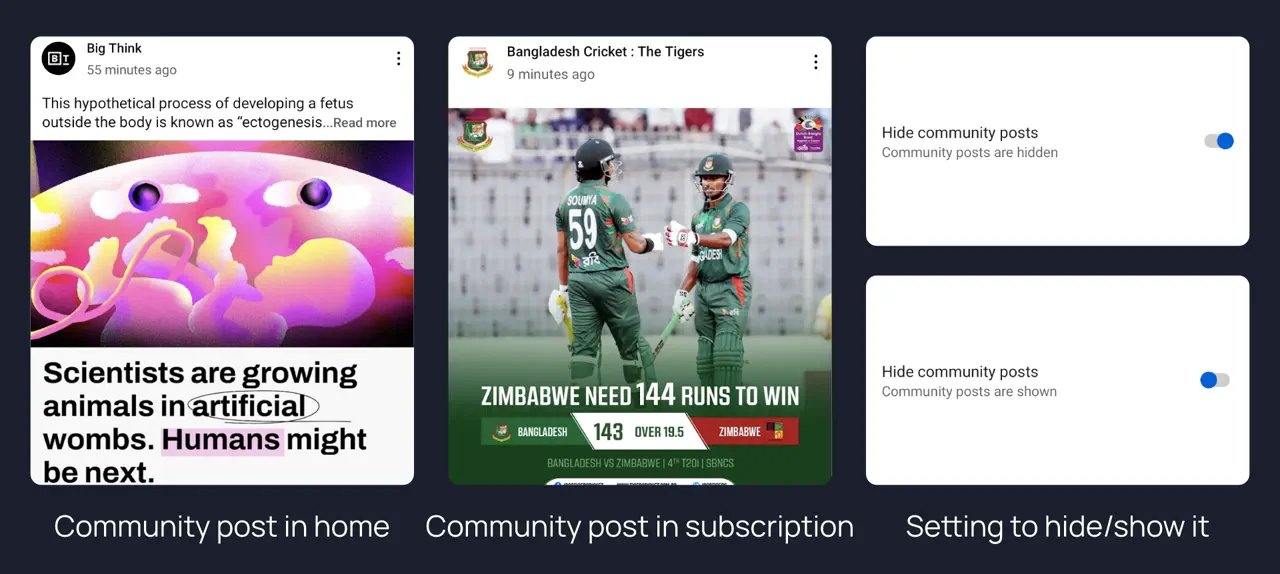
Community posts
The text-and-image posts channels inject between videos in home and subscriptions.
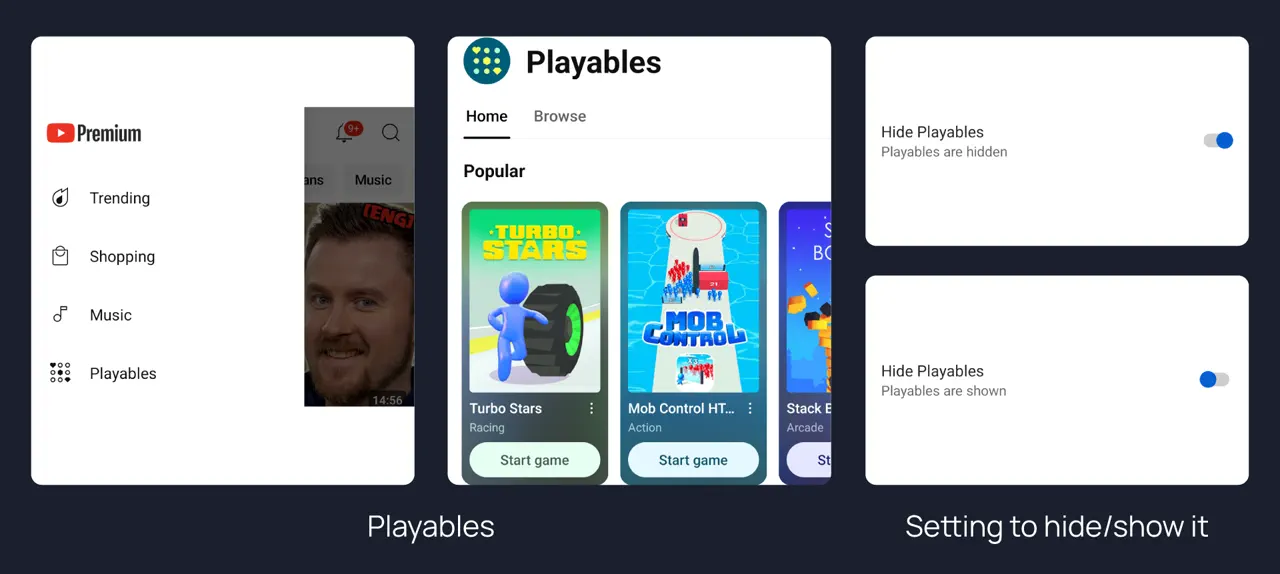
Playables
Removes YouTube's in-app games from the feed and from the side menu.
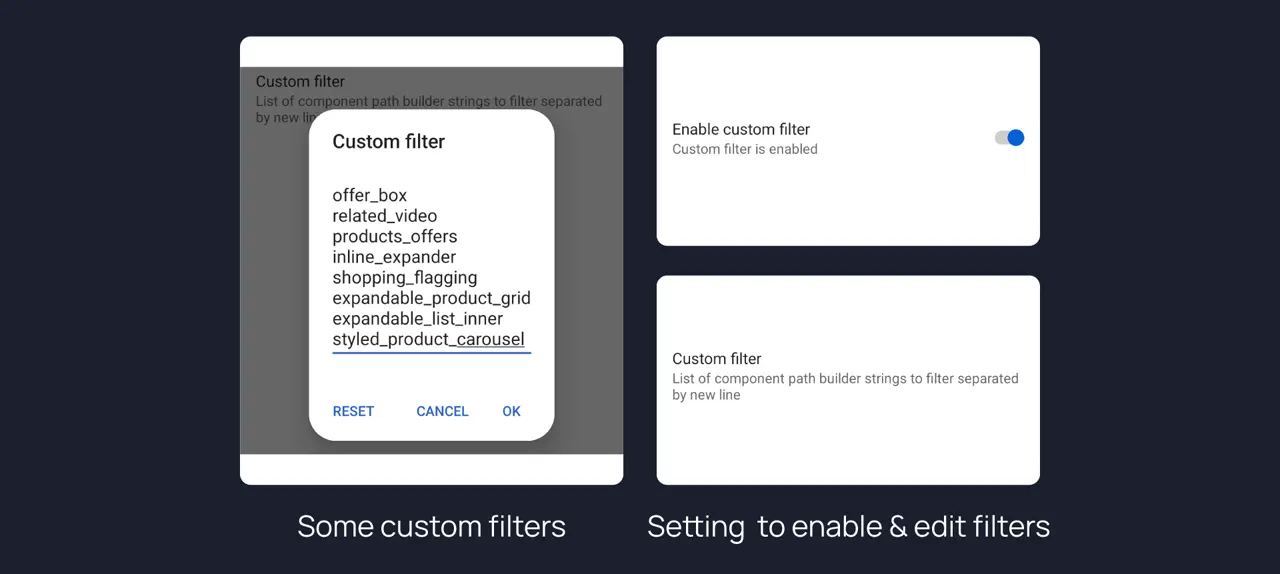
Custom component filter
The power-user escape hatch: filter by the app's own internal component names, one per line, for anything the named toggles do not cover.
A watch page without the furniture
Everything layered over the video or stacked under it can be switched off individually — useful on a phone screen where the description alone can run several screens deep.
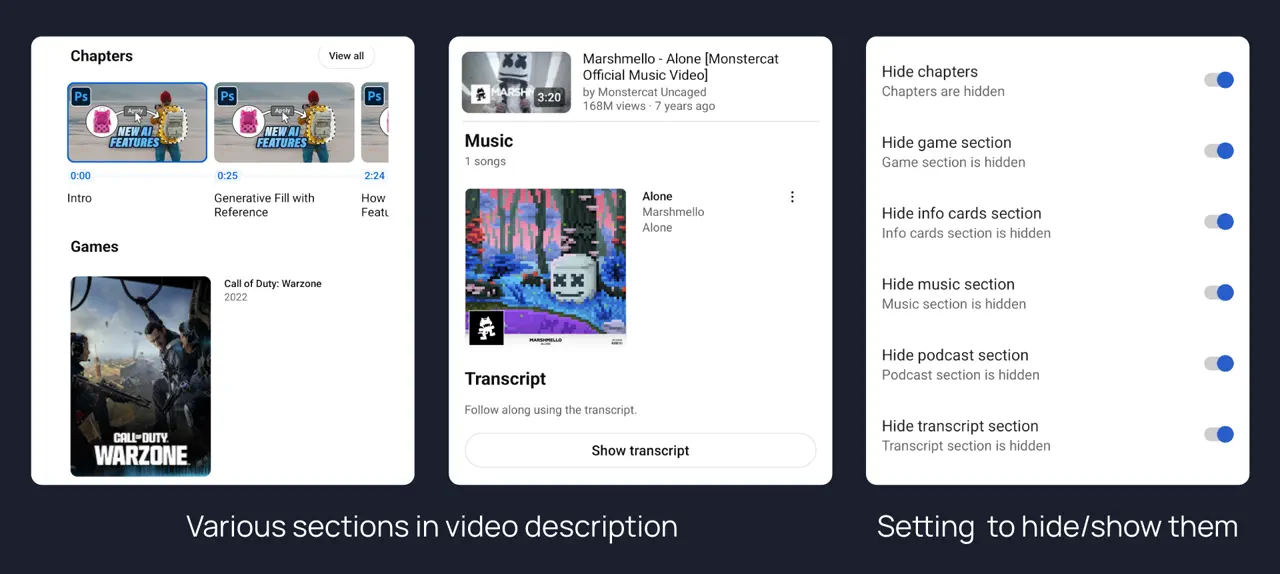
Prune the description
Chapters, the music credits block, the games section, info cards, podcasts and the transcript prompt each have their own toggle, so the description can be just the description.
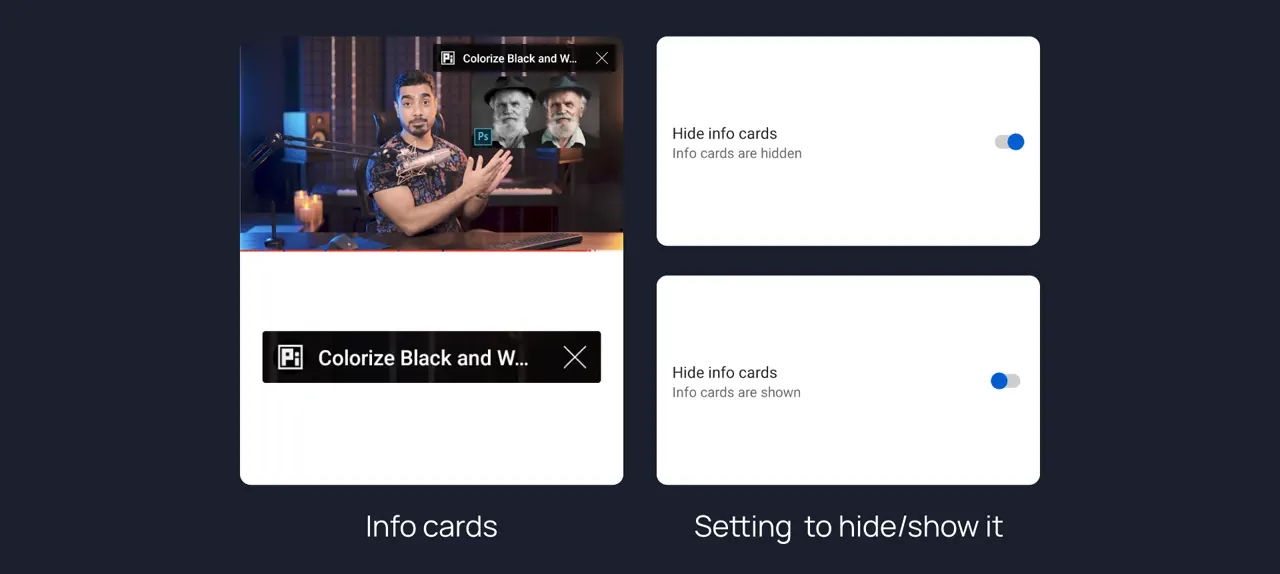
Info cards
The pop-out card in the top corner of the player, and the teaser that slides in with it.
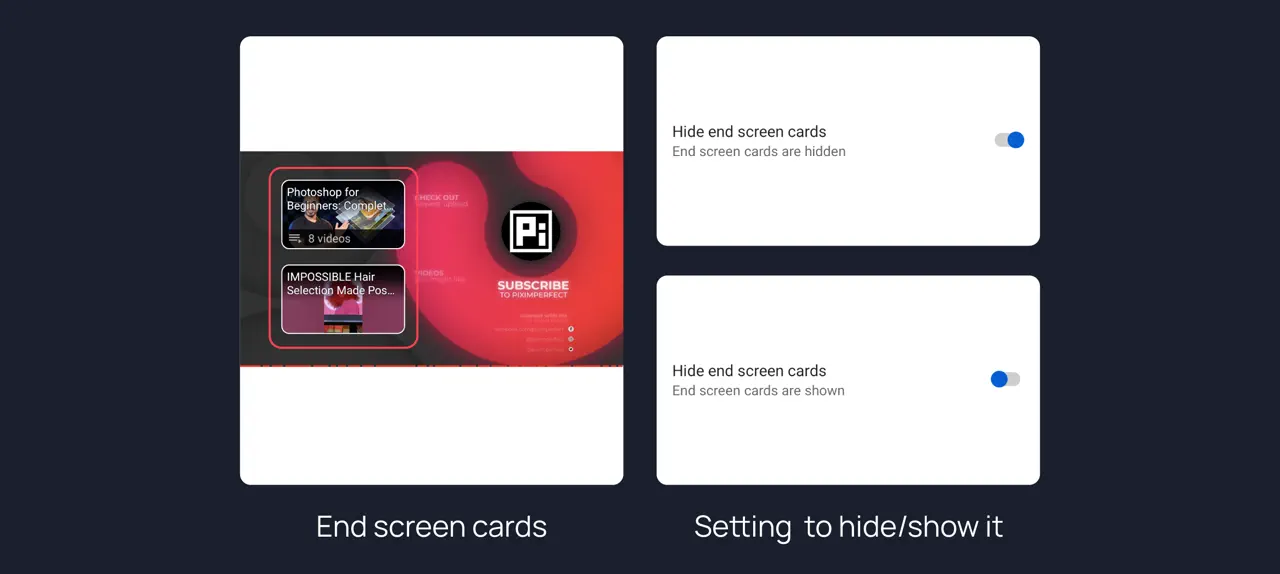
End screen cards
The tiles that cover the last twenty seconds of every video.
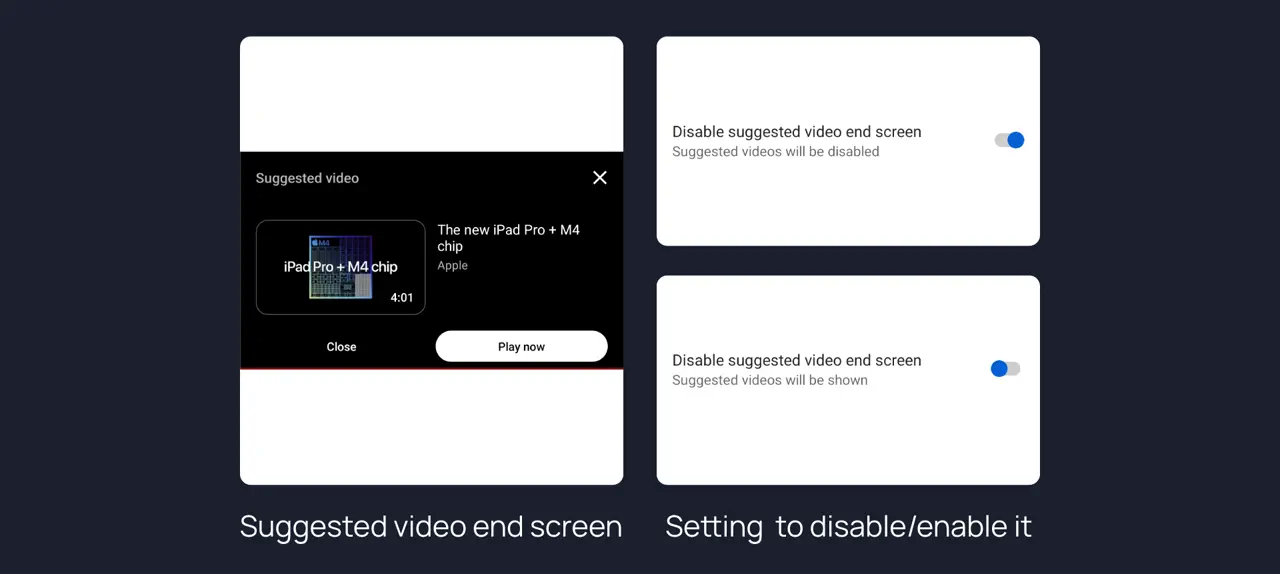
"Play now" suggestion overlay
The panel that appears as a video finishes, offering to start something else.
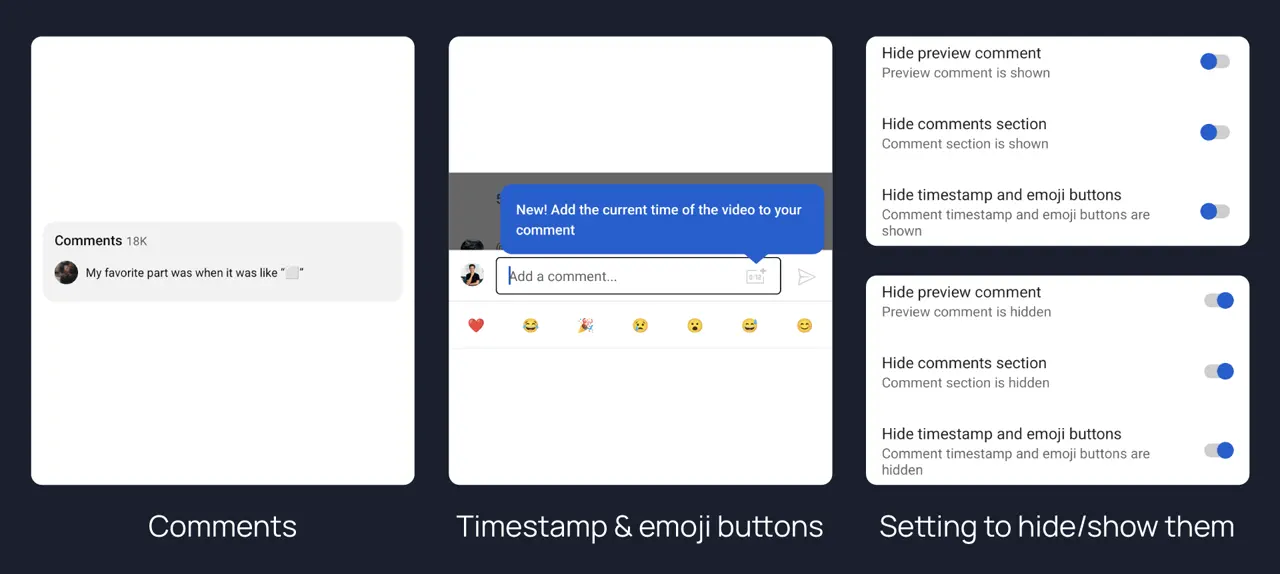
Comment section controls
Hide the preview comment on the watch page, the emoji picker and timestamp button, or the comment section entirely.
Make it look like yours
Layout changes that survive updates, from a true black theme to deciding which tabs exist at all.
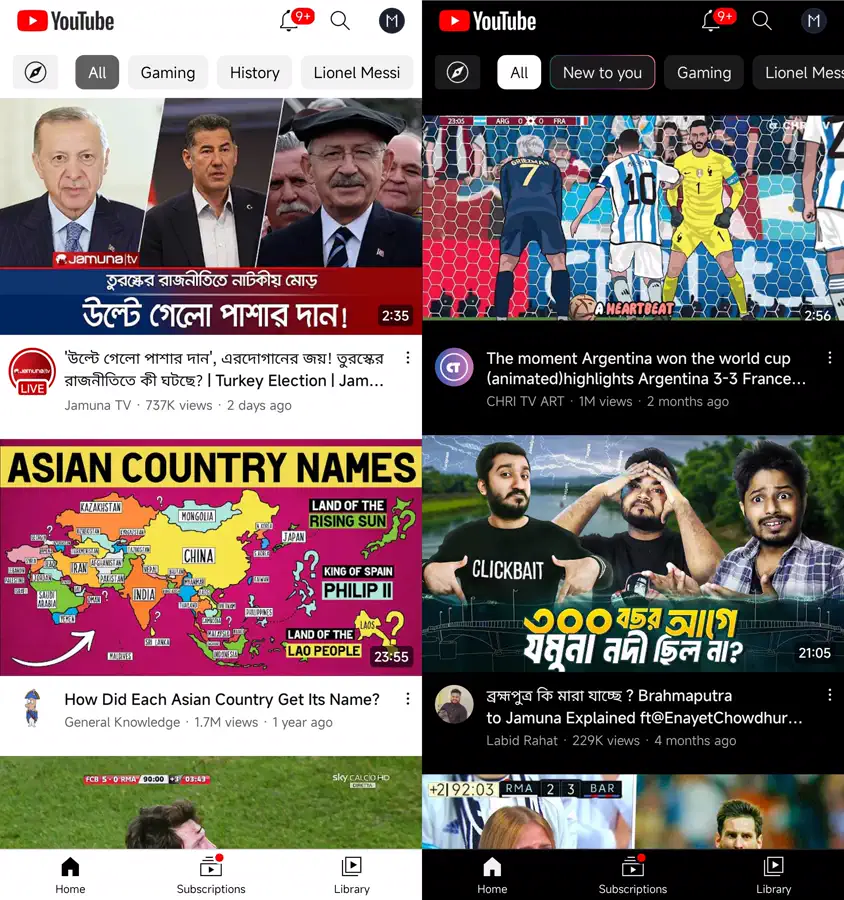
Dark and pure-black themes
A proper dark theme with a black variant that turns the background fully off on OLED panels — noticeably easier on the eyes at night, and on battery.
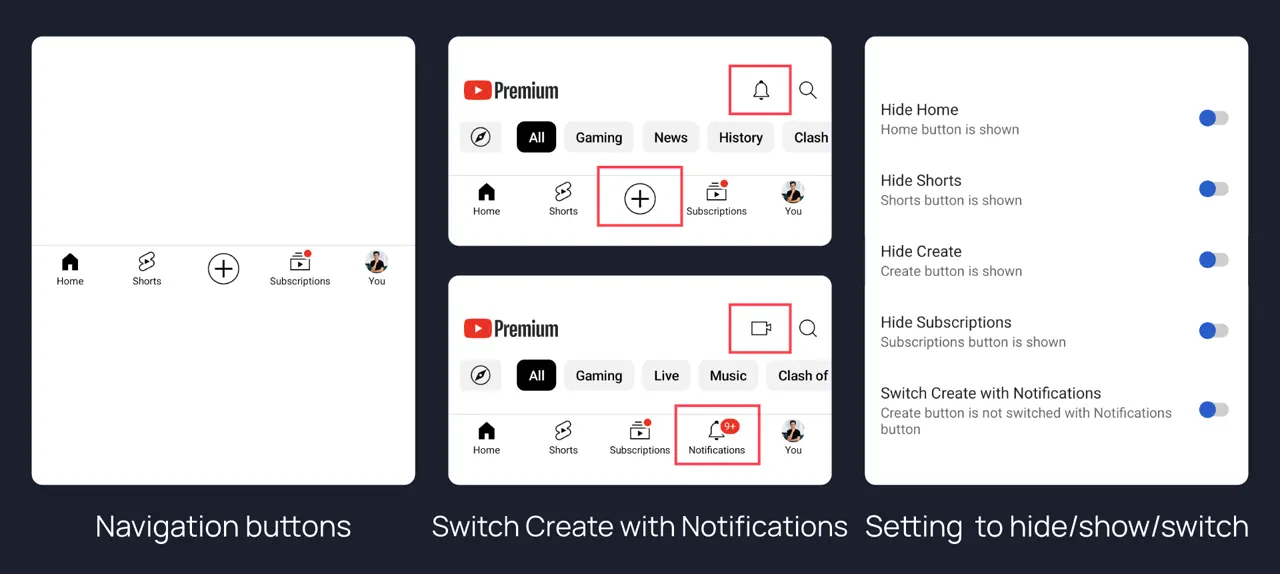
Rebuild the navigation bar
Hide Home, Shorts, Create or Subscriptions, or swap the Create button for Notifications.
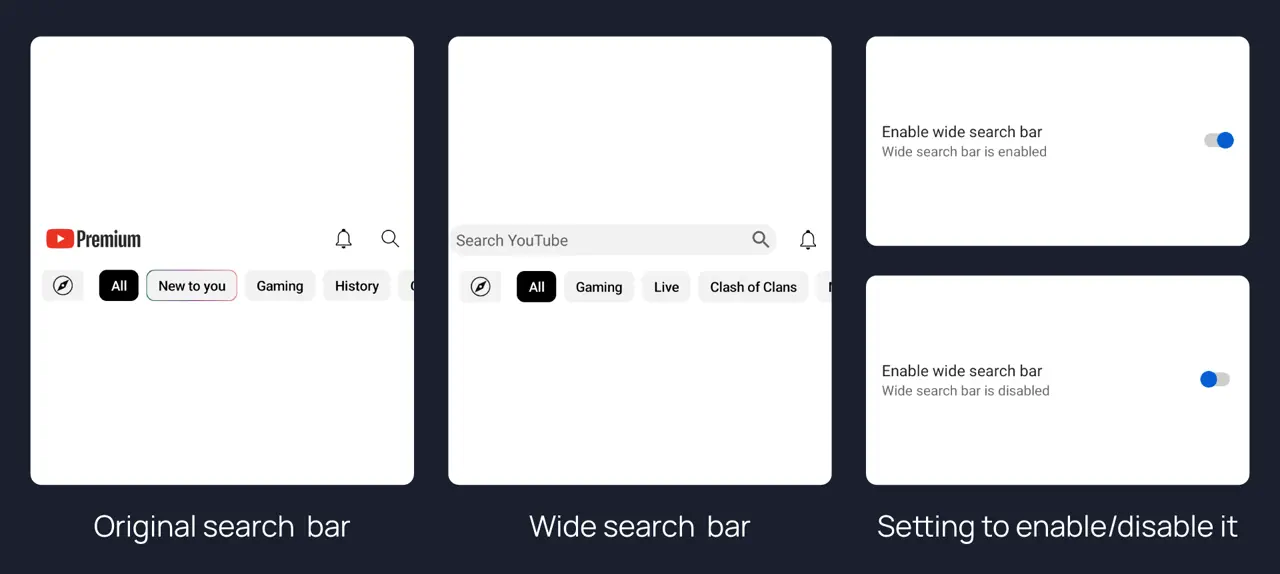
Wide search bar
Replaces the search magnifier with a full-width field, which is a much larger tap target one-handed.
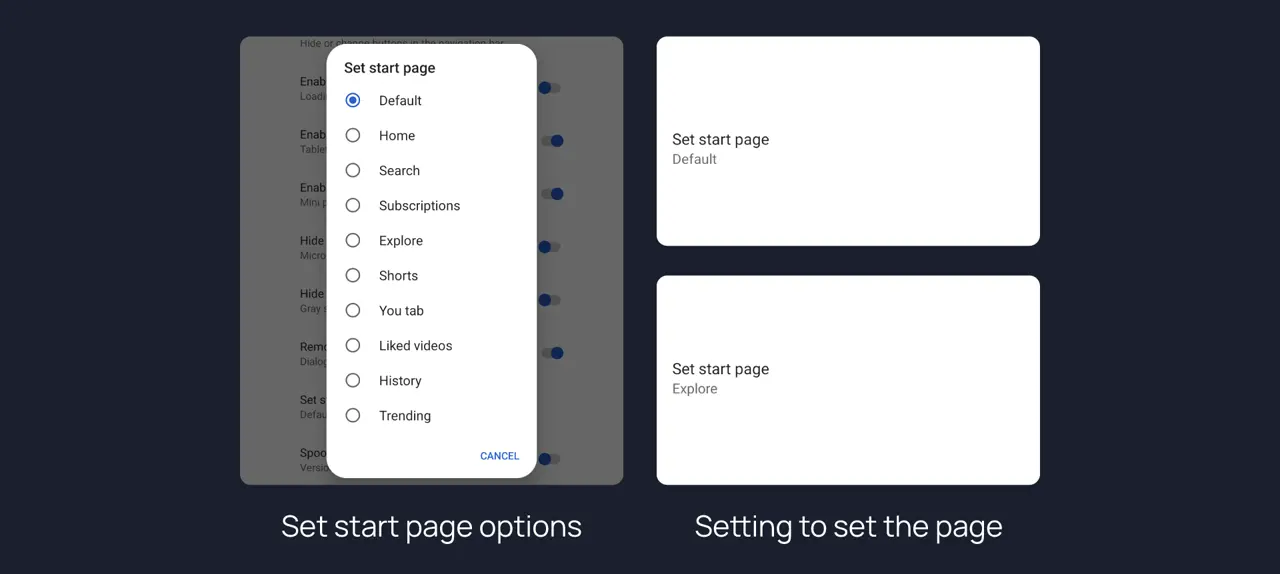
Choose the start page
Open straight into Subscriptions, Library, Explore or History instead of the algorithmic home tab.
Links and privacy
Small patches that stop the app leaking a share of your session into every link you send.
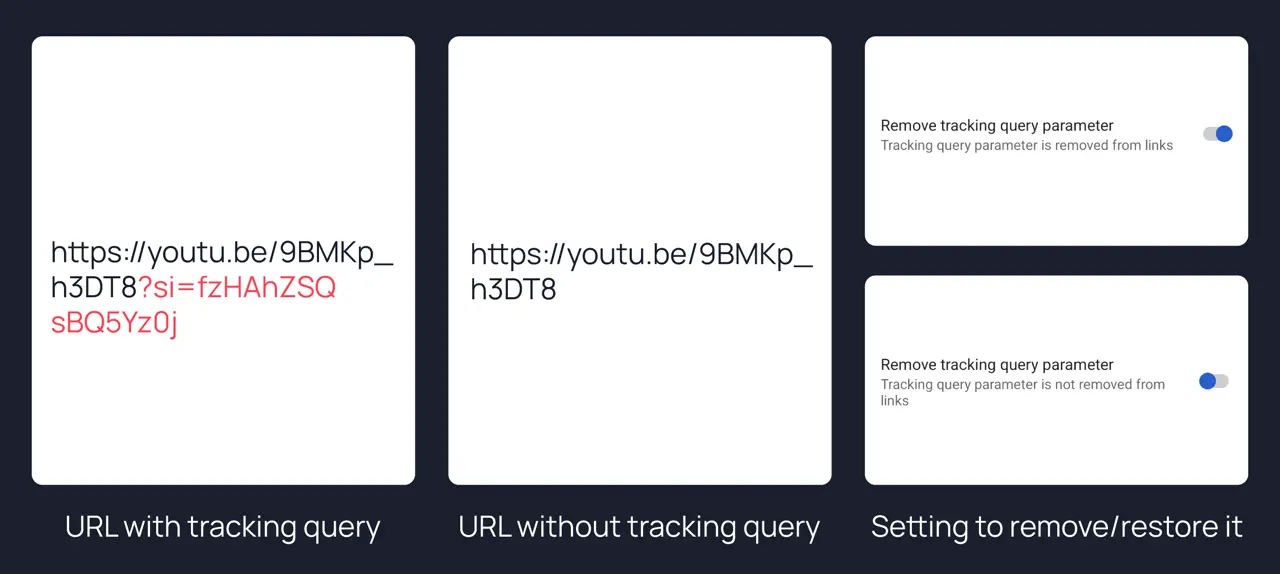
Strip the ?si= tracking parameter
Every link the share sheet produces carries an identifier that ties the share back to you. This removes it before the link leaves your phone, so what you paste is just the video.
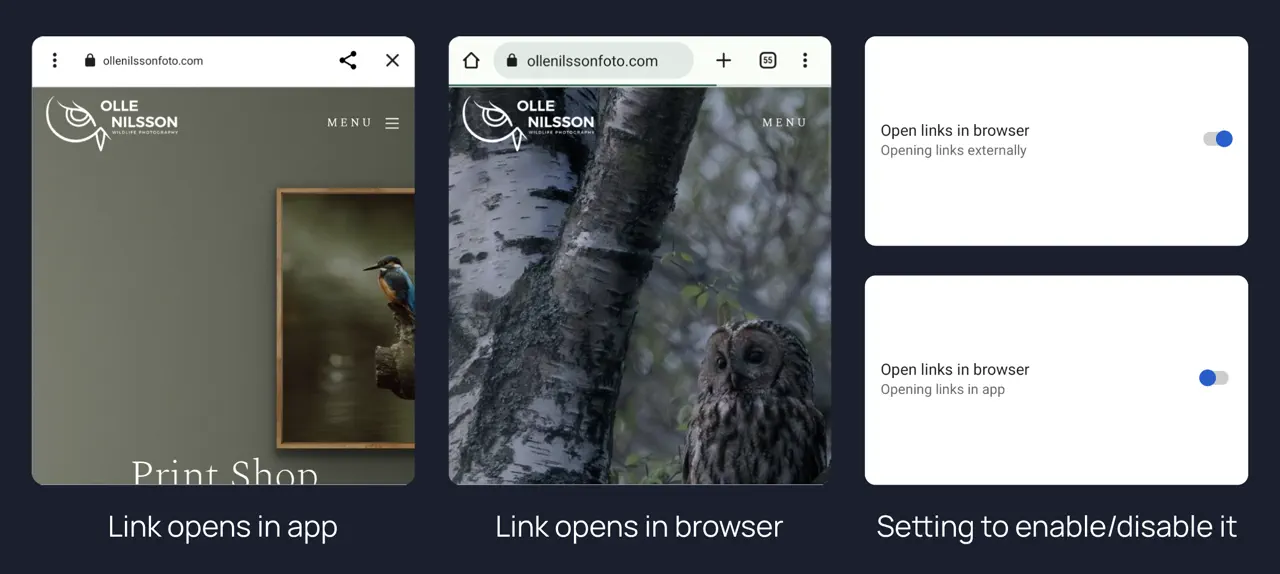
Open links in your browser
Sends outbound links to your real browser — with its extensions, blockers and logins — instead of YouTube's in-app view.
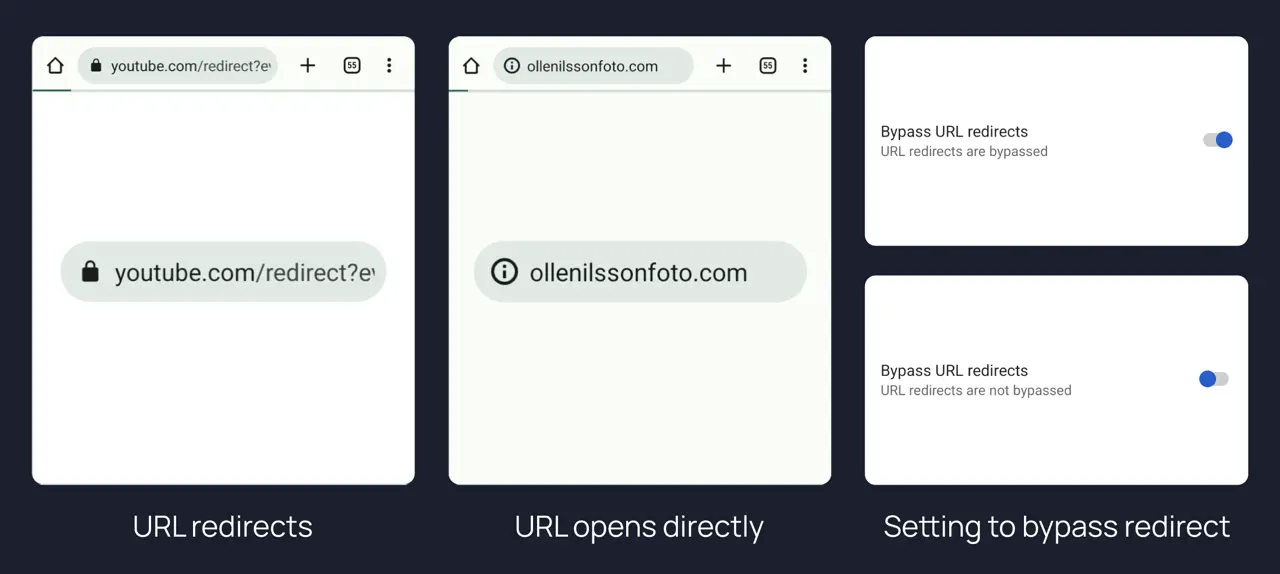
Bypass the redirect hop
Description links go straight to the destination rather than bouncing through youtube.com/redirect first.
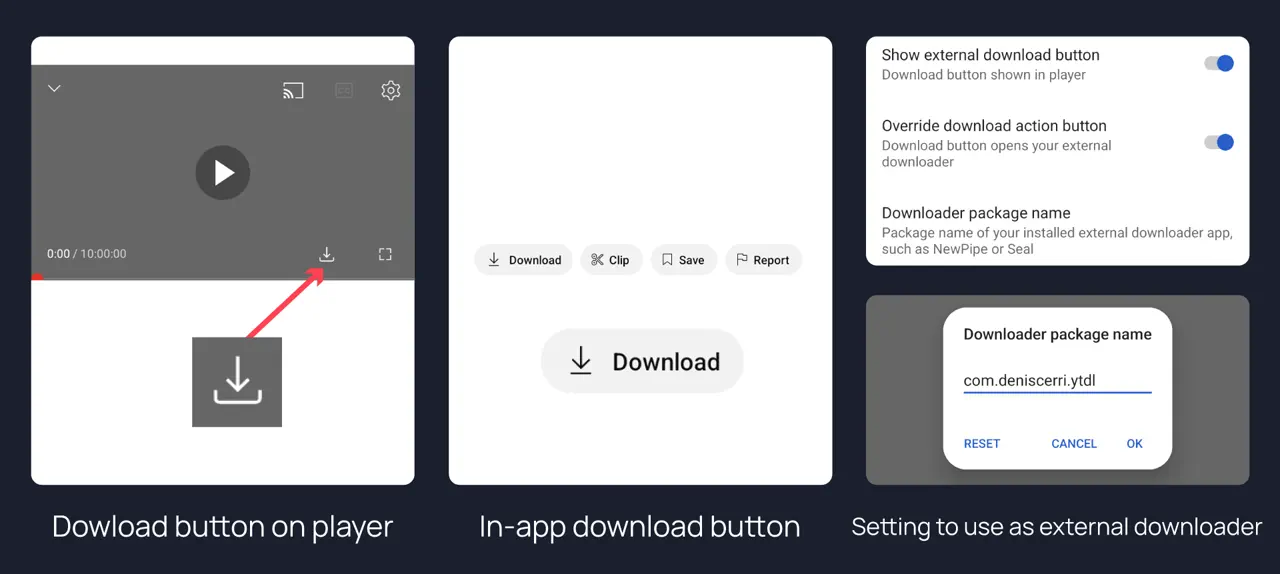
Hand downloads to another app
Points the player's download button at an external downloader such as NewPipe or Seal, so saving a video is not a Premium feature.
Under the hood
The plumbing worth knowing about — how ReVanced signs in without Play Services, and how to keep your configuration when you move to a new build.
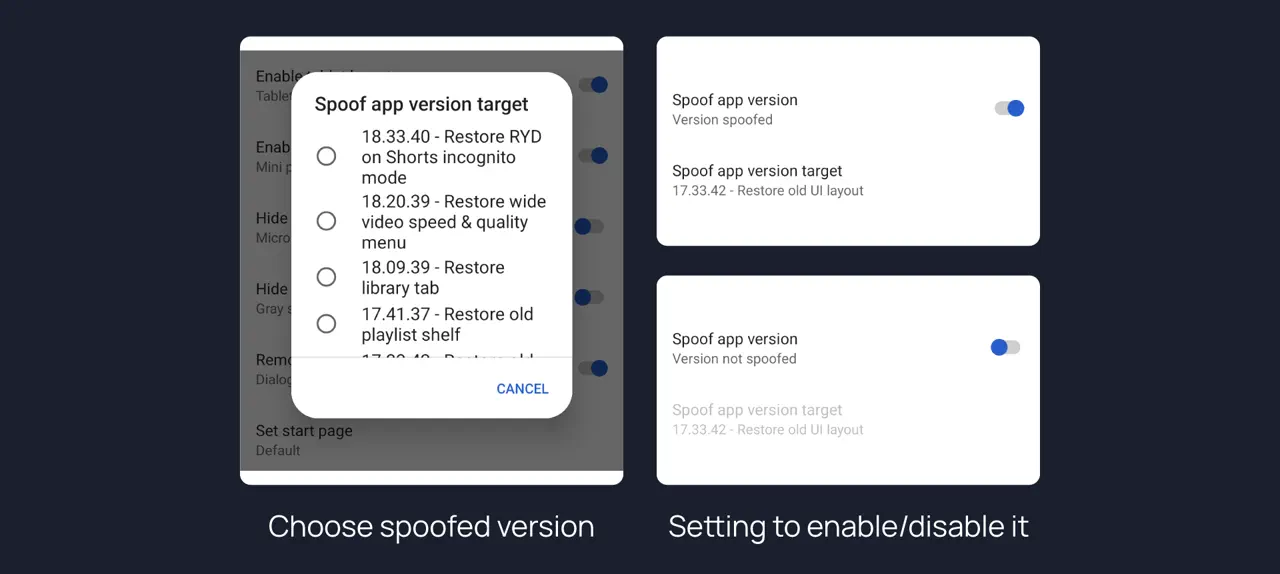
Spoof the app version
Pins the version YouTube thinks it is talking to, which is how older layouts get restored — the wide speed and quality menu, the old library tab, the old playlist shelf. Each target lists what it brings back.
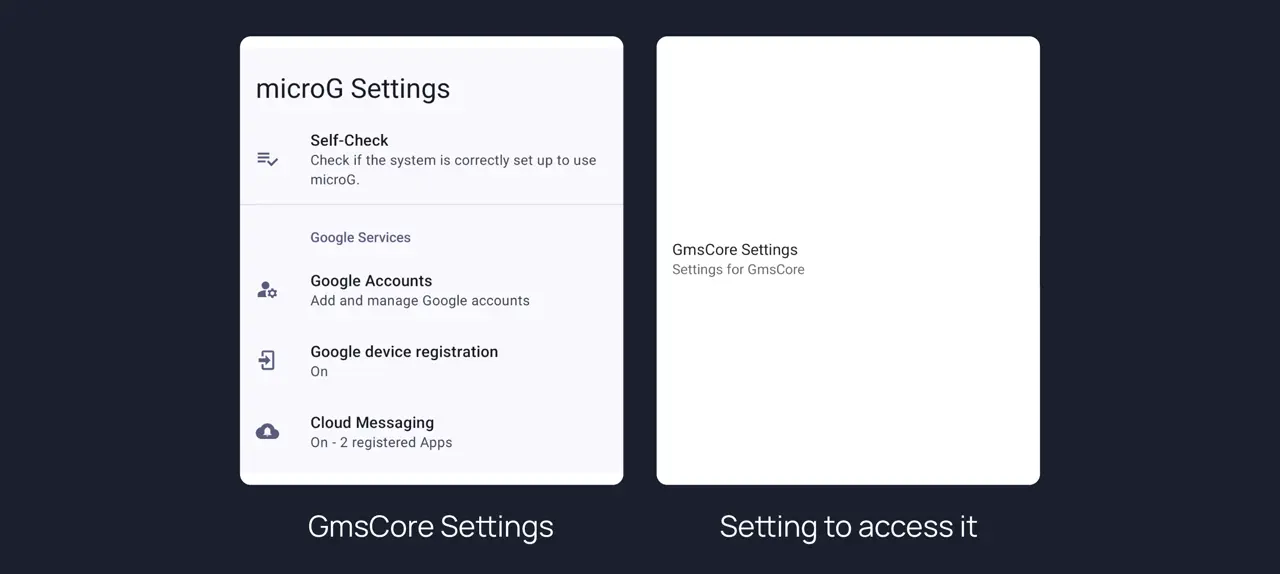
microG / GmsCore
A patched YouTube cannot use Google Play Services directly, so non-root installs sign in through microG. Its self-check screen is reachable from the ReVanced settings when something is not registering.
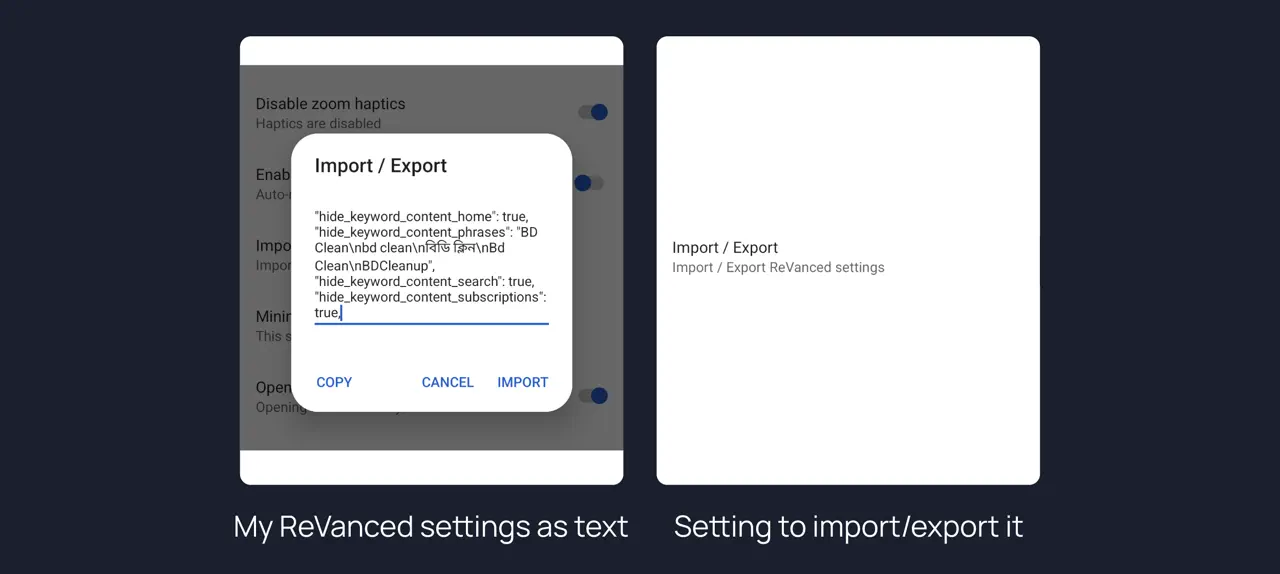
Import and export settings
Your whole configuration as one text blob — copy it out before reinstalling, paste it back afterwards, or share your setup.
Before you install
- Nothing here is mandatory. Every patch above is a toggle in settings; a fresh install behaves like YouTube until you change something.
- Non-root installs need microG. Install it first, or signing in will fail — the install guide walks through both the root and non-root paths.
- Updates are manual. A patched app does not update through the Play Store, so new builds are downloaded and installed the same way as the first one.
- Screenshots follow upstream. YouTube reshuffles its layout often; when a patch is renamed or dropped upstream, the toggle moves with it.
Questions first? Read the FAQ or the install guide.